Manual and walk-in bookings
Add phone and walk-in bookings to your calendar yourself, so online customers cannot book the same time. They are for customers who pay you directly, not through Paddli.
A manual booking is one you add yourself, for a customer who rang, sent you a message or turned up at the gate. It holds the time on your calendar straight away, so nobody can book the same slot online. Manual bookings are for customers who pay you directly, in cash, by bank transfer or on your own card reader: Paddli does not take any payment for them.
Where to find it
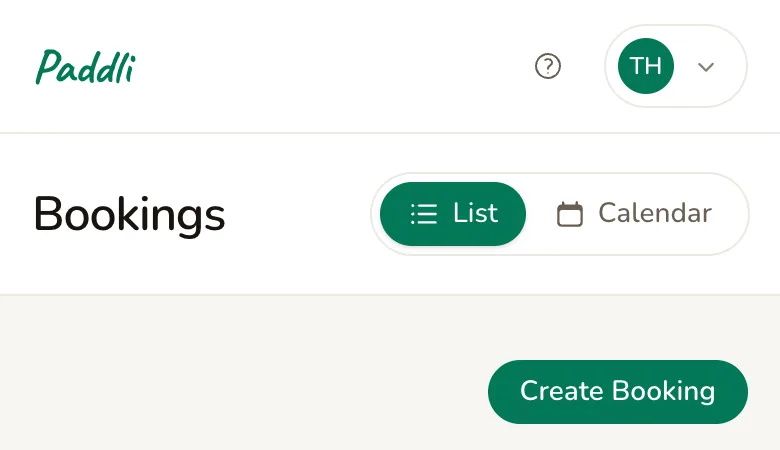
Section titled “Where to find it”Go to Bookings in the top bar, or tap Bookings in the bar along the bottom of the screen on a phone. In the list, tap Create Booking at the top.
If you use the calendar, open the Agenda view. On a day with nothing booked, tap Add a booking under Nothing booked on that day. On a computer there is also an Add booking button next to the day’s summary. Both open the same page as Create Booking, but they do not fill in the date for you, so you still pick it on the next page.
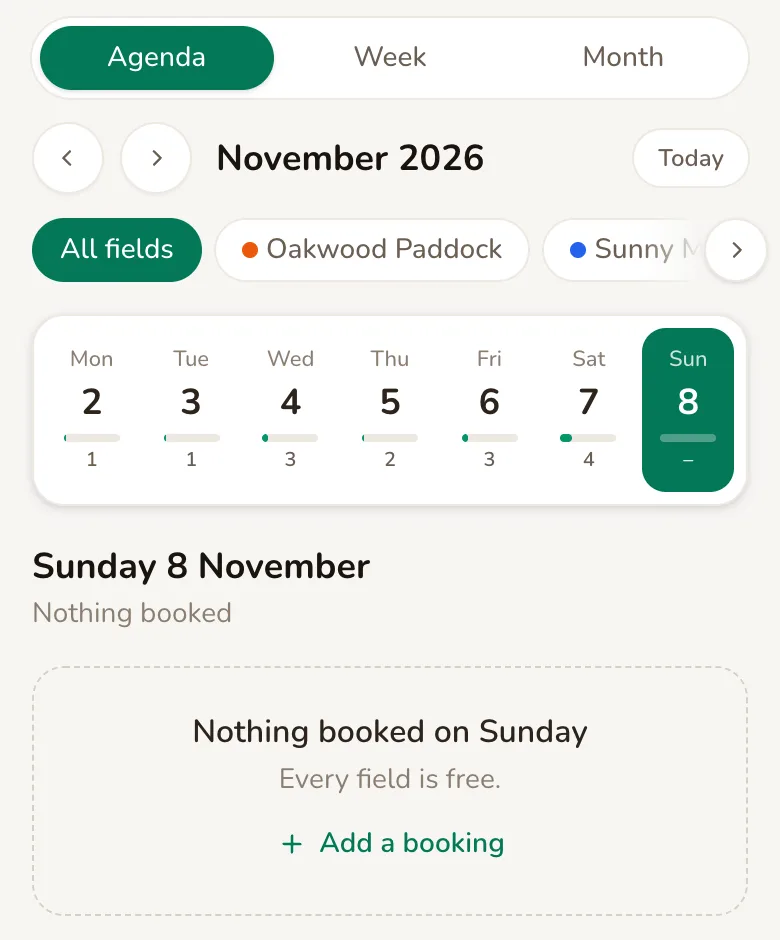
There is no create button in the Week or Month views, or on the dashboard.
Before you start: how payment works
Section titled “Before you start: how payment works”The Create Booking page opens with a reminder headed Manual bookings aren’t paid through Paddli.
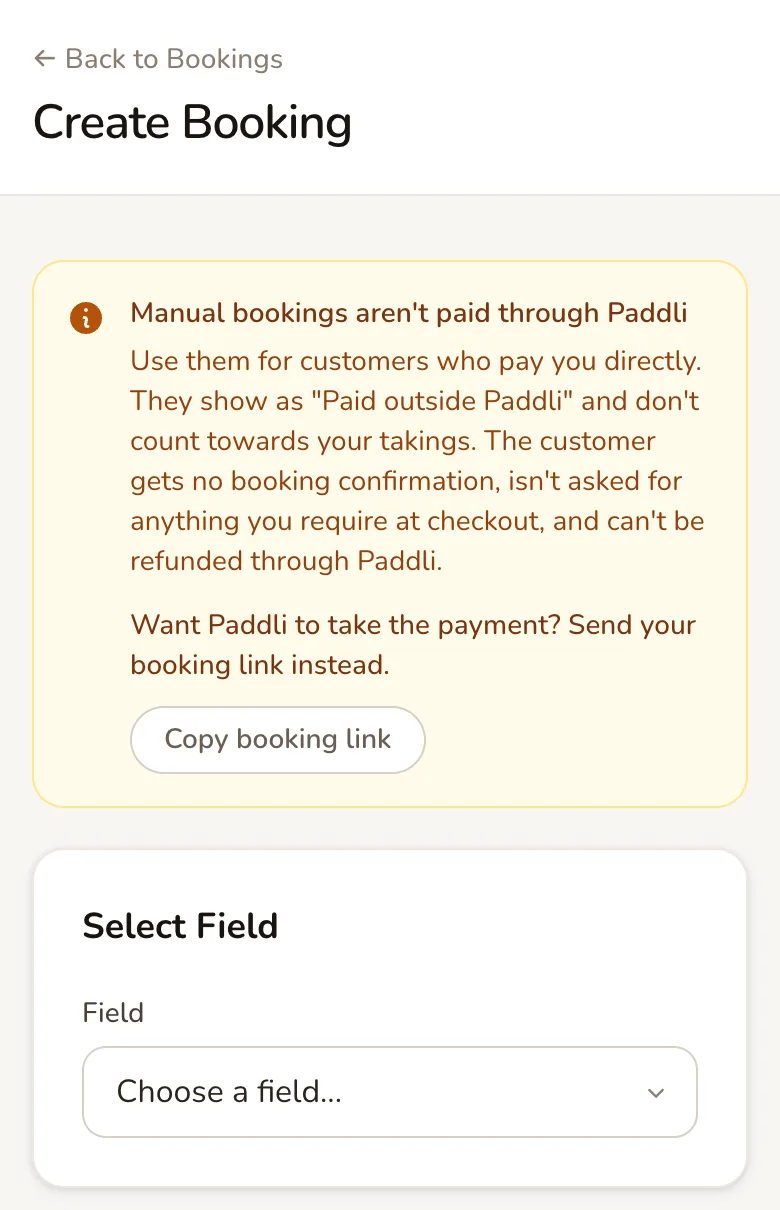
It sums up the main differences from an online booking:
- There is no price or payment. The booking shows as Paid outside Paddli wherever a price would normally appear.
- It does not count towards your takings. It is left out of the revenue figures on your dashboard and the takings on your calendar, and it never appears on the Payments page or in your payouts.
- The customer gets no booking confirmation. Tell them the date and time yourself.
- The customer is not asked for anything you require at checkout, such as vaccination documents, dog details or agreeing to your policies.
- It cannot be refunded through Paddli. If you need to give money back, do it yourself.
If you would rather Paddli took the payment, tap Copy booking link and send the link to your customer in a message or email. They can then book and pay online in the usual way. The button copies the link to your phone or computer; it does not send anything to the customer.
Add a manual booking
Section titled “Add a manual booking”1. Choose the field, session and date
Section titled “1. Choose the field, session and date”Field appears when you have more than one active field. Choose the field the customer is booking. Fields that are still drafts are not listed, and a field with no session times set up shows isn’t available for booking yet with a link to set it up.
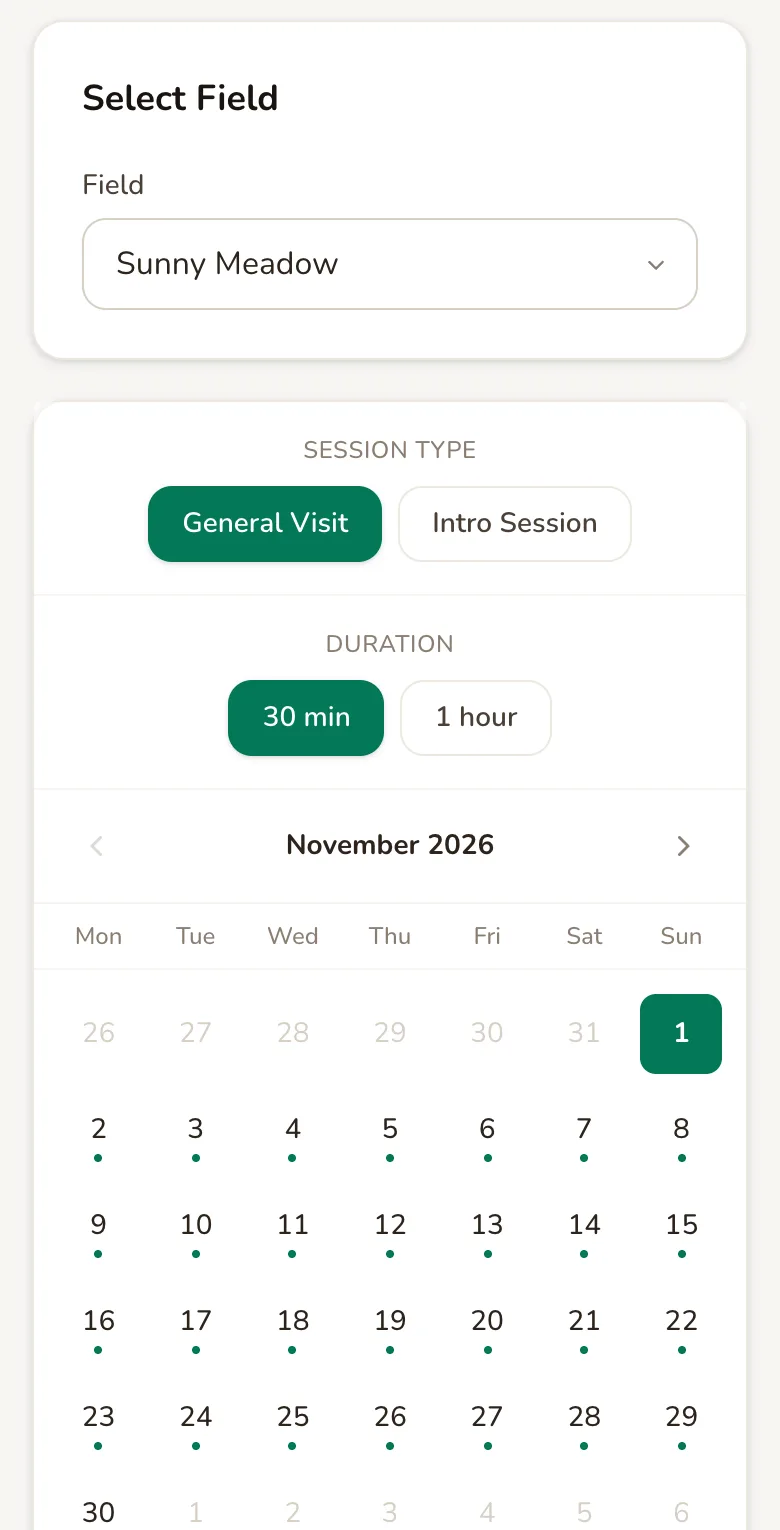
Session type appears when the field has more than one, and Duration appears when there is more than one booking length. Tap the ones the customer wants. You can book any session type here, including one you have set to approved customers only.
Then tap a day on the calendar. Days in the past, days with nothing free and days beyond your forward booking limit are greyed out.
2. Pick a time
Section titled “2. Pick a time”The free start times for that day appear under Morning, Afternoon and Evening. Tap one.
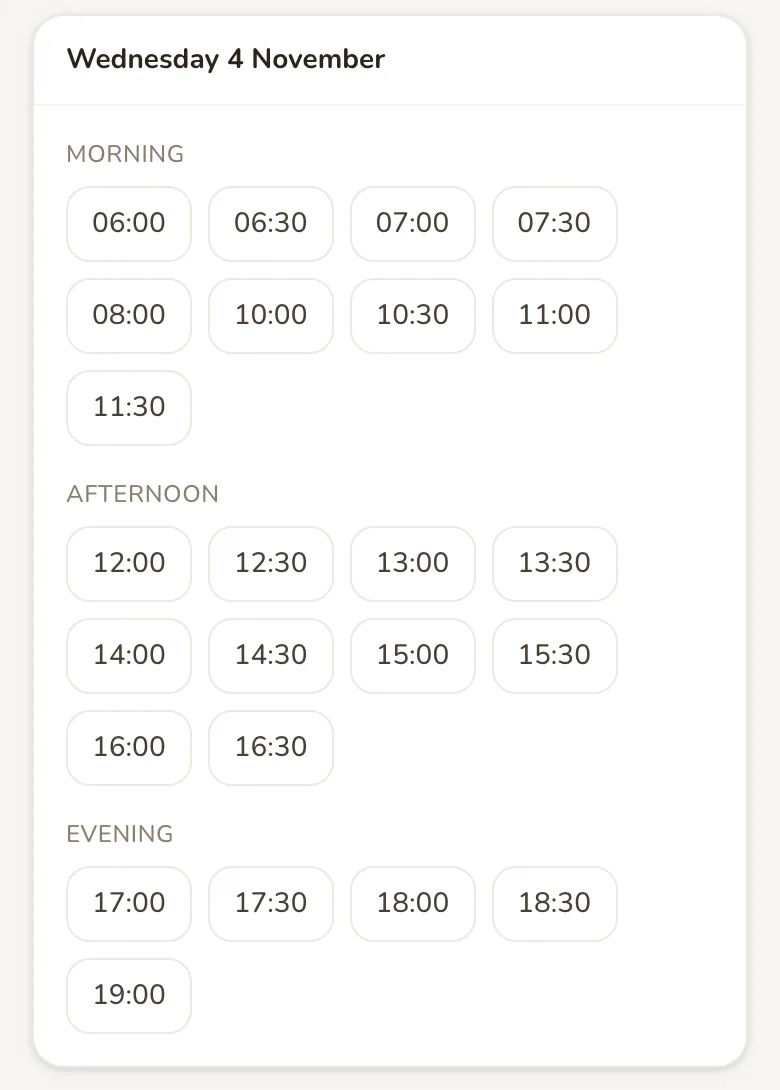
You can only choose a time that your booking page would also offer. Your opening hours, closed dates and maintenance, events, existing bookings and weekly subscriptions, your Minimum booking notice and your Forward booking limit all still apply. That is what stops a phone booking and an online booking landing on the same slot. If you need a time that is not shown, change your opening hours first, then come back.
If no times are free, you see No available slots for this date. Pick another day.
3. Add the customer’s details
Section titled “3. Add the customer’s details”Once you pick a time, the Customer Details form appears below.
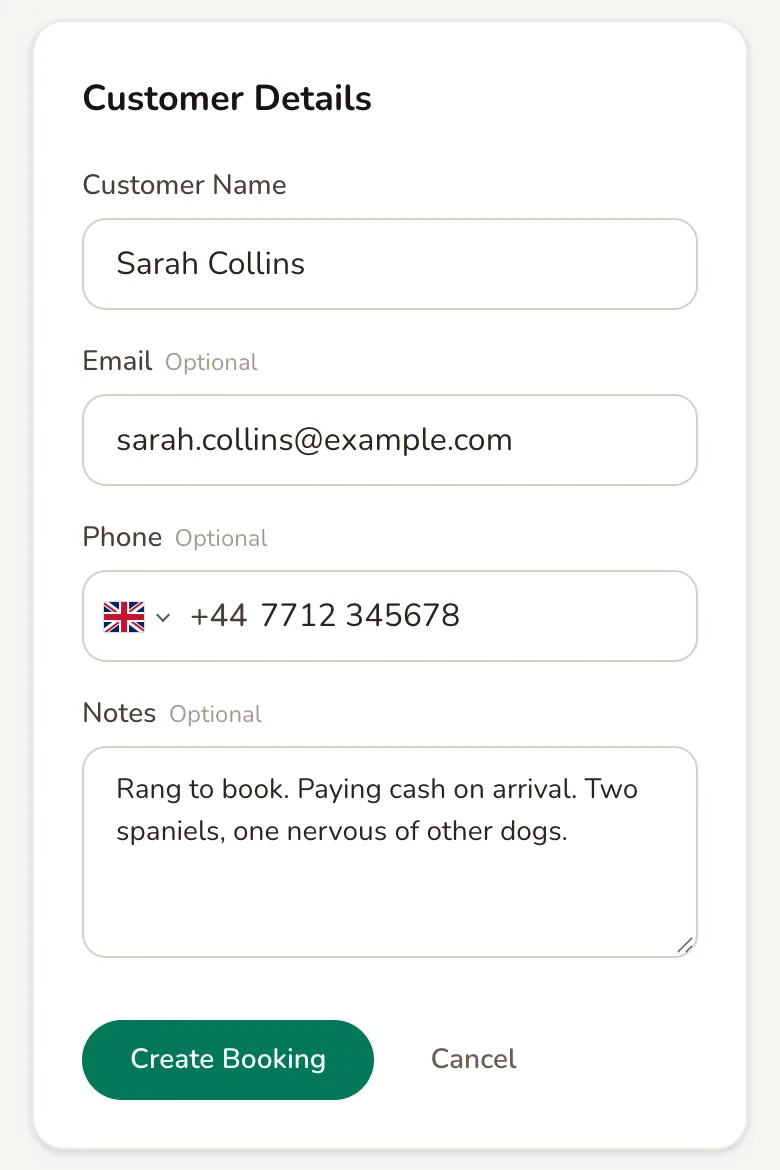
Customer Name is the only thing you have to fill in.
Email is optional. With an email, the booking appears on the customer’s page in Customers and in your customer export, and the customer gets a booking reminder before their visit.
Phone is optional. It starts with your own country selected, and you can tap the flag to change it. With a phone number, you can call the customer from the booking, and they can get a text reminder if you send those.
Notes is optional, up to 1,000 characters. Use it for anything you want to remember on the day, such as how they are paying or how many dogs they are bringing. Notes show on the booking and on your calendar.
There is no search for existing customers, so type the details in each time. The booking is created for one dog. You can change the number of dogs afterwards with Edit details.
Tap Create Booking.
4. Done
Section titled “4. Done”You see Booking Created with a summary of the booking and Payment showing Paid outside Paddli.
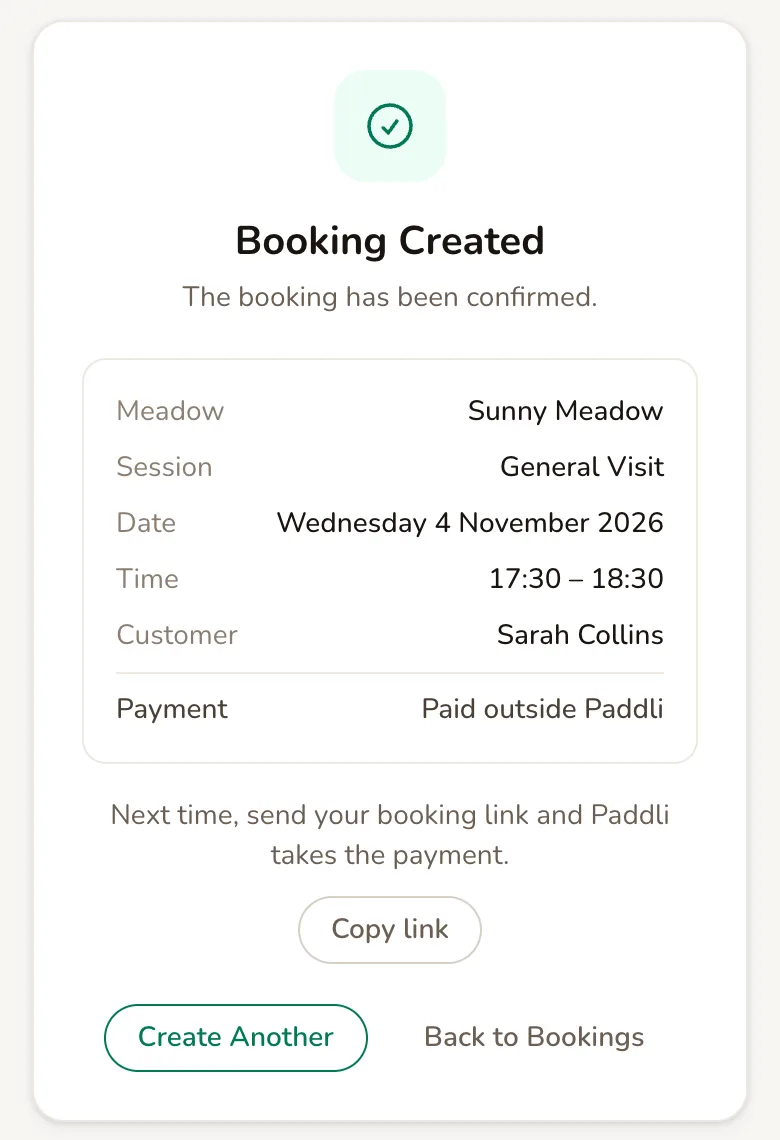
The booking is confirmed straight away, and that time disappears from your booking page.
Tap Create Another to add the next booking. It keeps the field, session type and duration you used, which is quicker when several people turn up at once.
If the time was taken while you were filling in the form, for example by someone booking online, you see This time slot was just taken. Please choose another. Pick another time and tap Create Booking again.
What your customer gets
Section titled “What your customer gets”Paddli does not send a confirmation for a manual booking, by email or by text. After that, the customer is treated like any other customer, as long as you added their email or phone number:
- A booking reminder before their visit, at the time you have set for reminders.
- The gate code, if your field has a smart lock. It is created before the reminder and sent in it. See getting started with smart locks.
- A Booking Rescheduled or Booking Cancelled message if the booking changes. These leave out the price and any refund details.
- The Manage Booking page, linked from their reminder, where they can see the booking and change or cancel it if your cancellation settings allow that. It does not show a price.
A walk-in with no email or phone number gets nothing from Paddli.
Find manual bookings later
Section titled “Find manual bookings later”Manual bookings sit alongside your online bookings in the list and on the calendar. In the list they carry a grey Manual label next to Confirmed, and the price reads Paid outside Paddli.
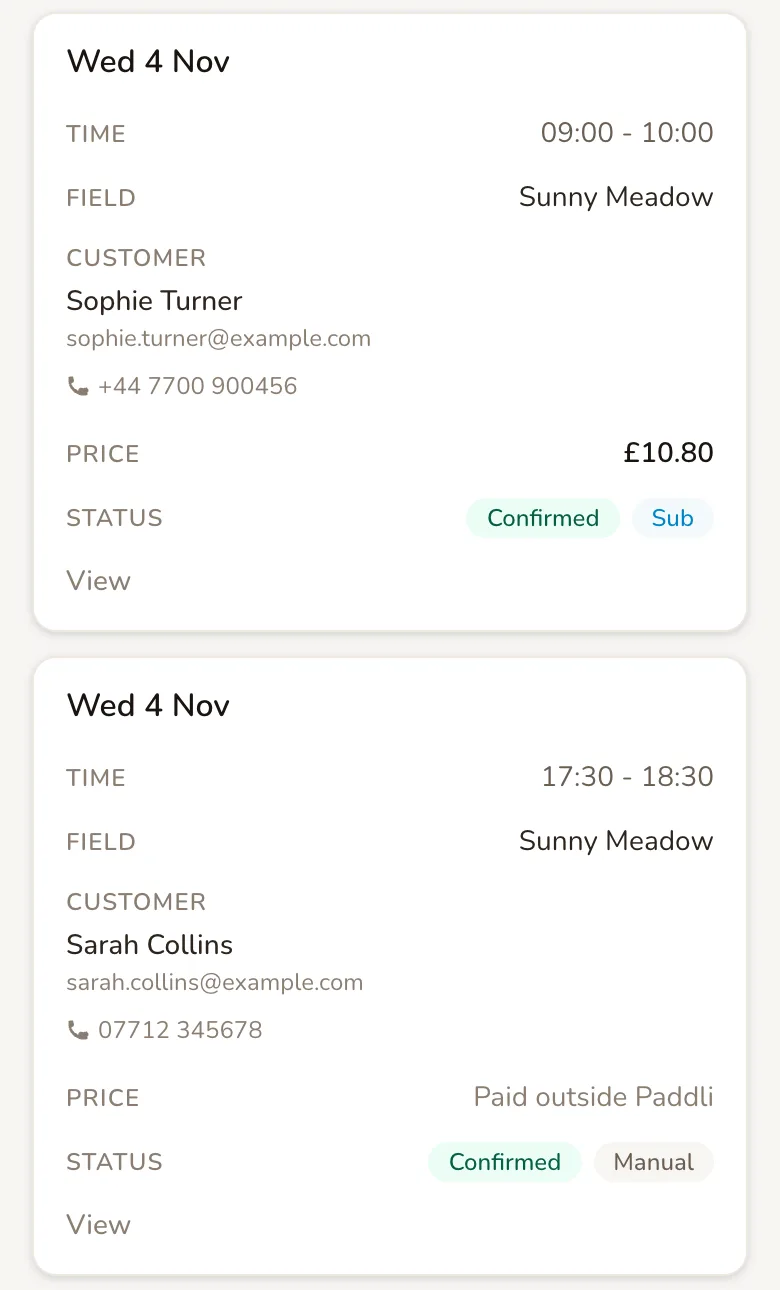
On the calendar, Paid outside Paddli appears where the price would be, with your notes underneath.
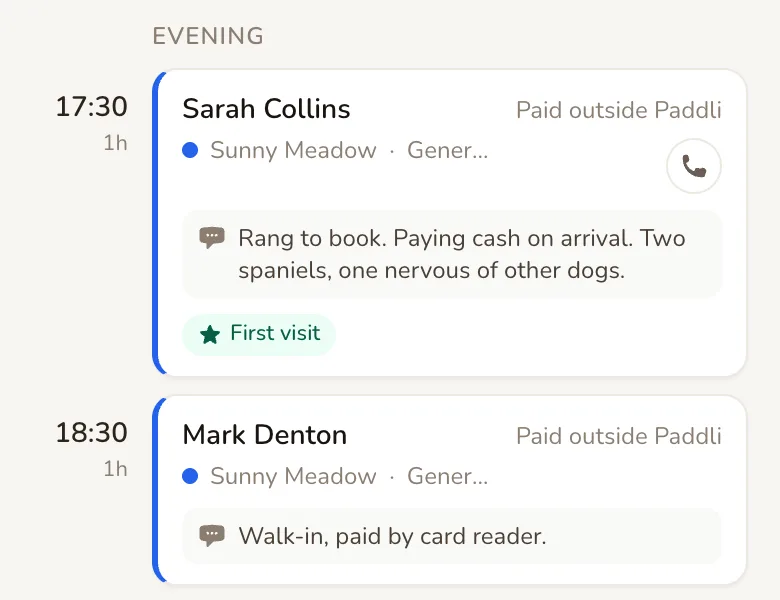
There is no filter for manual bookings in the list. Search finds them by customer name, email or field, but not by phone number.
Change or cancel a manual booking
Section titled “Change or cancel a manual booking”Tap View in the list, or tap the booking on the calendar, to open it. The booking page shows the Manual label and Paid outside Paddli as the price. It has no pricing breakdown or order, because there was no payment.
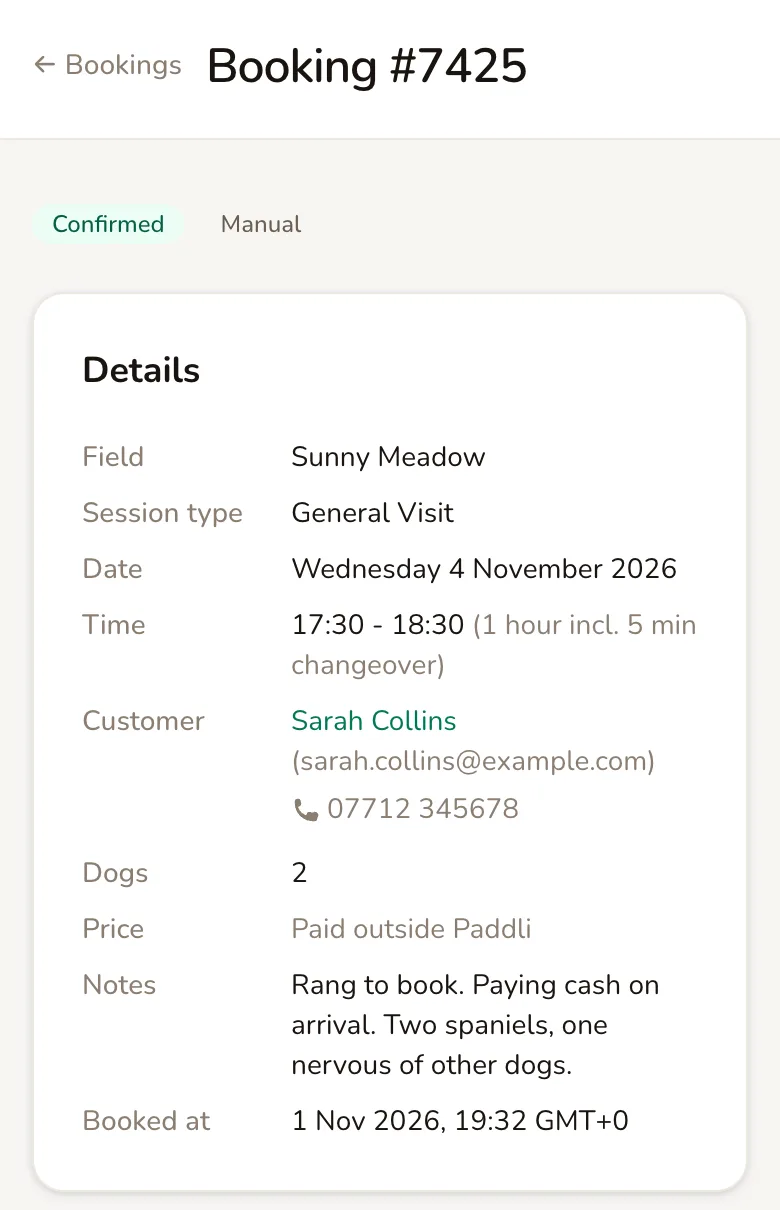
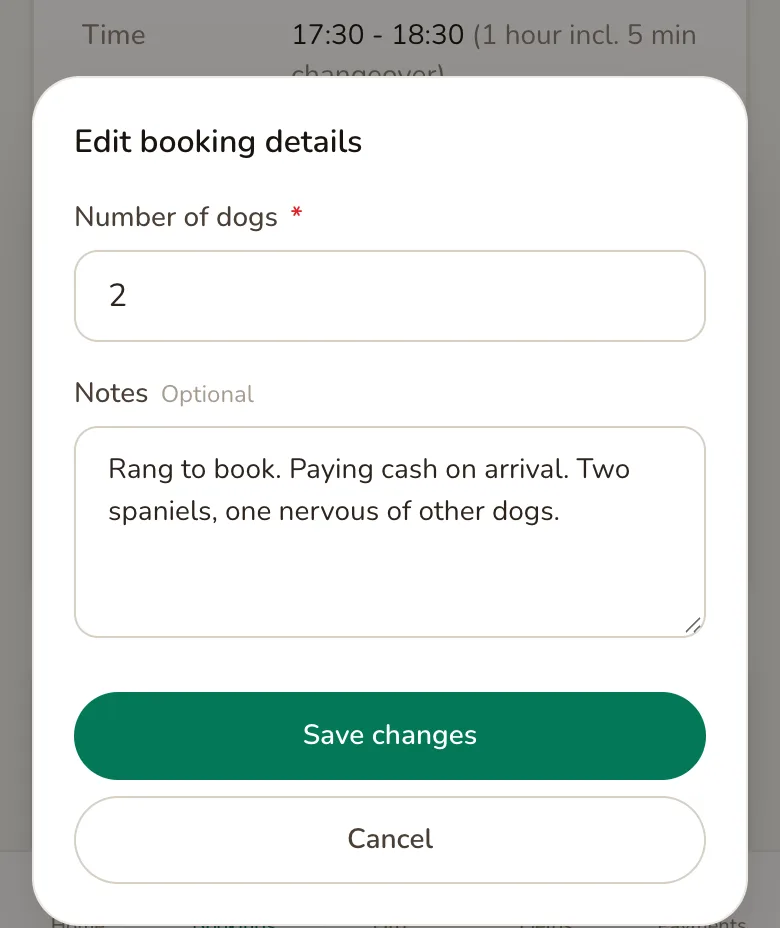
Edit details changes the number of dogs and the notes, and the dogs’ names and breeds if your field collects them. The customer is not told about these changes. You cannot change the customer’s name, email or phone here.
Reschedule moves the booking to another free time on the same field. If the booking has the customer’s email or phone number, they are told the new time.
Cancel booking asks you to confirm, then cancels it and frees the time for someone else.
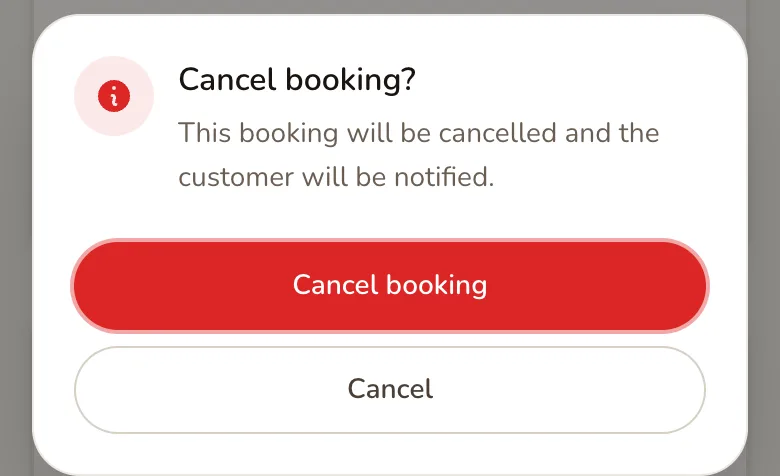
No money moves when you cancel a manual booking, because Paddli never took any. If the customer paid you in advance, refund them yourself. The customer is only notified if the booking has their email or phone number. The booking then shows Cancelled by Host.
Things a manual booking cannot do
Section titled “Things a manual booking cannot do”- Take or record a payment. Not yet. There is no price, no “paid in cash” option and no payment link. Keep a note of how they paid in Notes if it helps.
- Add extras, discount codes or vouchers. Not yet. These only work when the customer books online.
- Repeat every week. Not yet, from your account. Use Create Another for each visit, or ask Jamie or Helen, who can set up a repeating manual booking for a regular customer who pays you directly.
- Override your availability. No. Change your opening hours first if you need an extra time.
- Send a confirmation. Not yet. Tell the customer yourself.
Related
Section titled “Related”- Opening hours. Manual bookings use the same available times as your booking page, so a change to your opening hours changes what you can book here too.
- Group sessions. If you book a group session type, the manual booking takes one place in the group.
- Events. A manual booking cannot be added to an event. If you later create an event that closes the field at the same time as manual bookings, Paddli warns you first, then cancels them and emails the customers. Any refund for those is yours to arrange.
- Customer documents and dog details. Customers with a manual booking are not asked for them, so collect anything you need yourself.
- Weekly subscriptions. If a regular customer would rather pay through Paddli each week, ask them to subscribe on your booking page instead.
Frequently asked questions
Can I take payment for a manual booking through Paddli?
No. A manual booking has no price and no payment, and it shows as Paid outside Paddli. Use it for customers who pay you in cash, by bank transfer or on your own card reader. If you want Paddli to take the payment, send the customer your booking link instead and let them book and pay online. The Create Booking page has a Copy booking link button for this.
Does Paddli charge a fee on manual bookings?
No booking fee is taken, because no payment goes through Paddli. Manual bookings also do not count towards the takings and revenue figures on your dashboard and calendar, and they never appear on the Payments page or in your payouts.
Will the customer get a confirmation email?
No. Paddli does not send any confirmation for a manual booking, so let the customer know the date and time yourself. If you add their email or phone number, they do get the usual booking reminder before their visit, including the gate code if your field has a smart lock, and they are told if the booking is later rescheduled or cancelled.
Can I book a customer in at a time that is not available online?
No. The Create Booking page only offers times that your booking page would also offer, so your opening hours, closed dates, existing bookings, minimum booking notice and forward booking limit all still apply. This is what stops double bookings. To open up an extra time, change your weekly opening hours first.
Can I add a weekly manual booking for a regular customer?
Not yet, not from your own account. Each manual booking is a single visit, and Create Another lets you add the next one quickly. If you would like Paddli to take the money each week, ask the customer to sign up to a weekly subscription on your booking page. If they pay you directly every week, Jamie or Helen can set up a repeating manual booking for you.
What happens to the money if I cancel a manual booking?
Nothing, because Paddli never took any money for it. Cancelling frees up the time on your calendar, and if the booking has the customer's email or phone number, they get a Booking Cancelled message with no price or refund details in it. If the customer paid you in advance, refund them yourself.
Can I change the customer's name or phone number after creating the booking?
Not yet. Edit details on the booking page changes the number of dogs and the notes, but not the customer's name, email or phone. If a detail is wrong, cancel the booking and create it again with the right details.
Can I use a manual booking to block time for maintenance or my own dogs?
You can, but it is not the best tool for it, because a manual booking needs a customer name and still sends reminders if you add contact details. To close the field, add a date override under Date Overrides on the Booking setup page instead. It can close a whole day or block off part of one, and it hides those times from customers without creating a booking.