Account customers
Let chosen customers book on account instead of paying every time. Paddli sends them one invoice a week, fortnight or month, chases it if it is late, and shows you what each invoice brings in.
An account lets a regular customer book now and pay later. Instead of paying by card every time, they tap Add to my account at checkout, and Paddli sends them one invoice a week, fortnight or month for everything they booked.
It is built for professional dog walkers, trainers and day care businesses who use your field several times a week and want one bill for their books rather than a card payment for every session. You choose who gets an account, how often they are invoiced, how long they have to pay and how much they can owe. Paddli issues the invoices, takes the payment online, chases late payers and shows you what each invoice brings in.
Where to find it
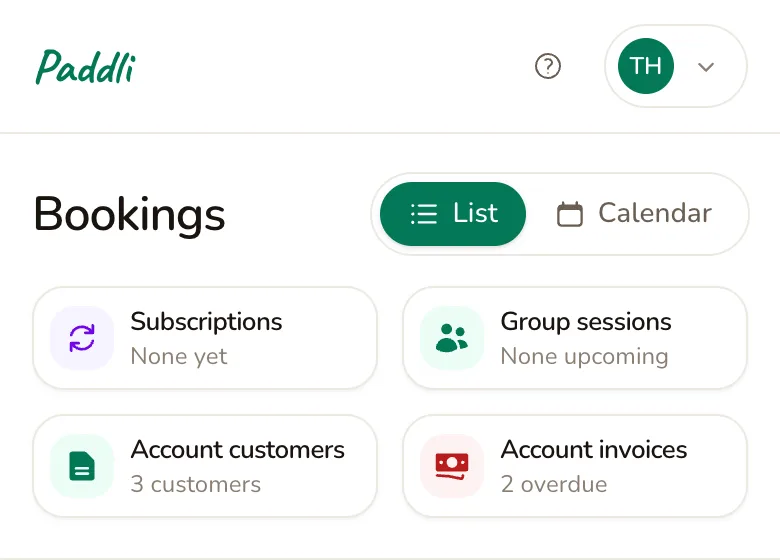
Section titled “Where to find it”Go to Bookings in the top bar and tap the Account customers shortcut under the page title. On a phone, Bookings is in the bar along the bottom of the screen. Once you have unpaid invoices, an Account invoices shortcut appears beside it, and it turns red when any are overdue.
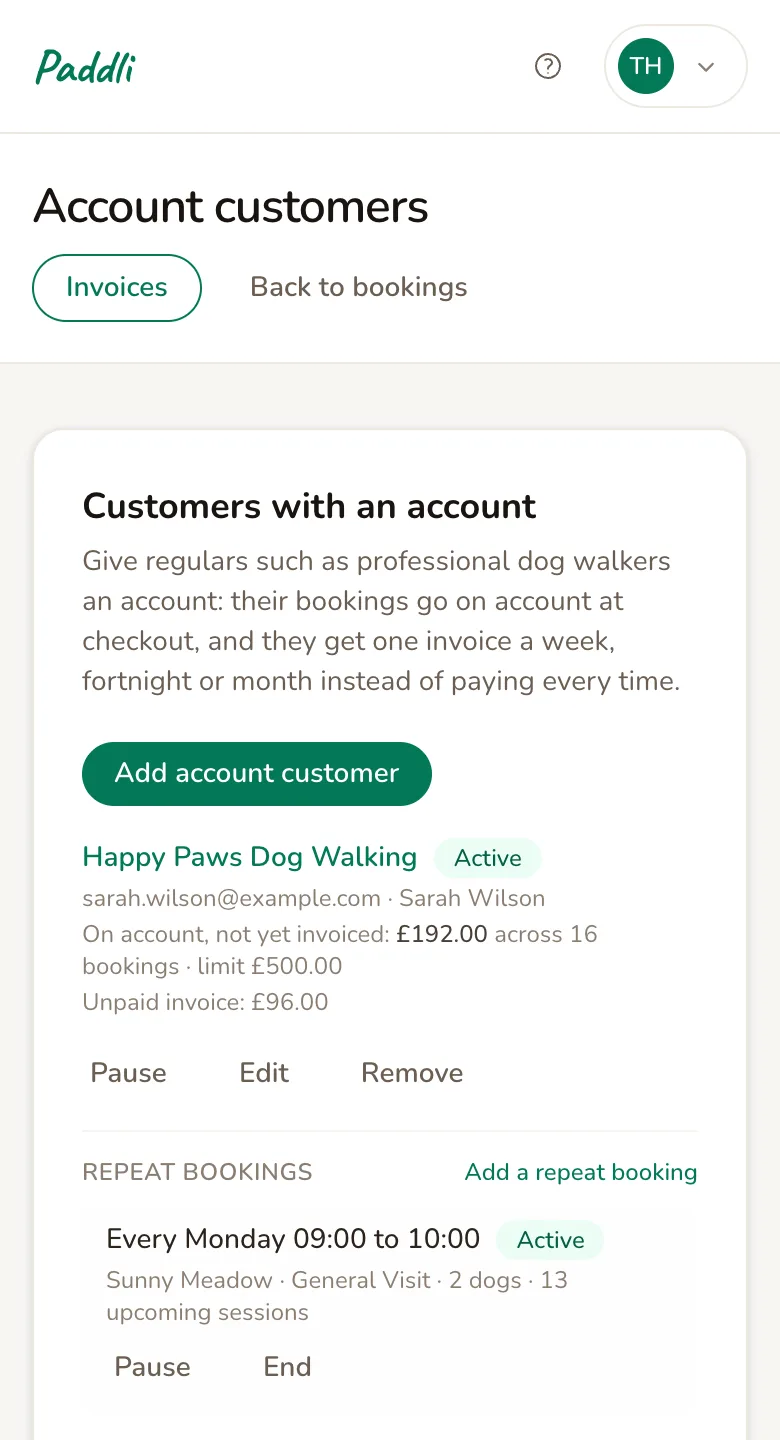
The Account customers page lists everyone with an account, what is on each account, and their repeat bookings. Below the list are your invoicing settings.
There is no switch to turn accounts on. Customers only see the option once you have given them an account, and it only appears at checkout while your Stripe account can take card payments.
Give a customer an account
Section titled “Give a customer an account”Tap Add account customer and fill in the form.
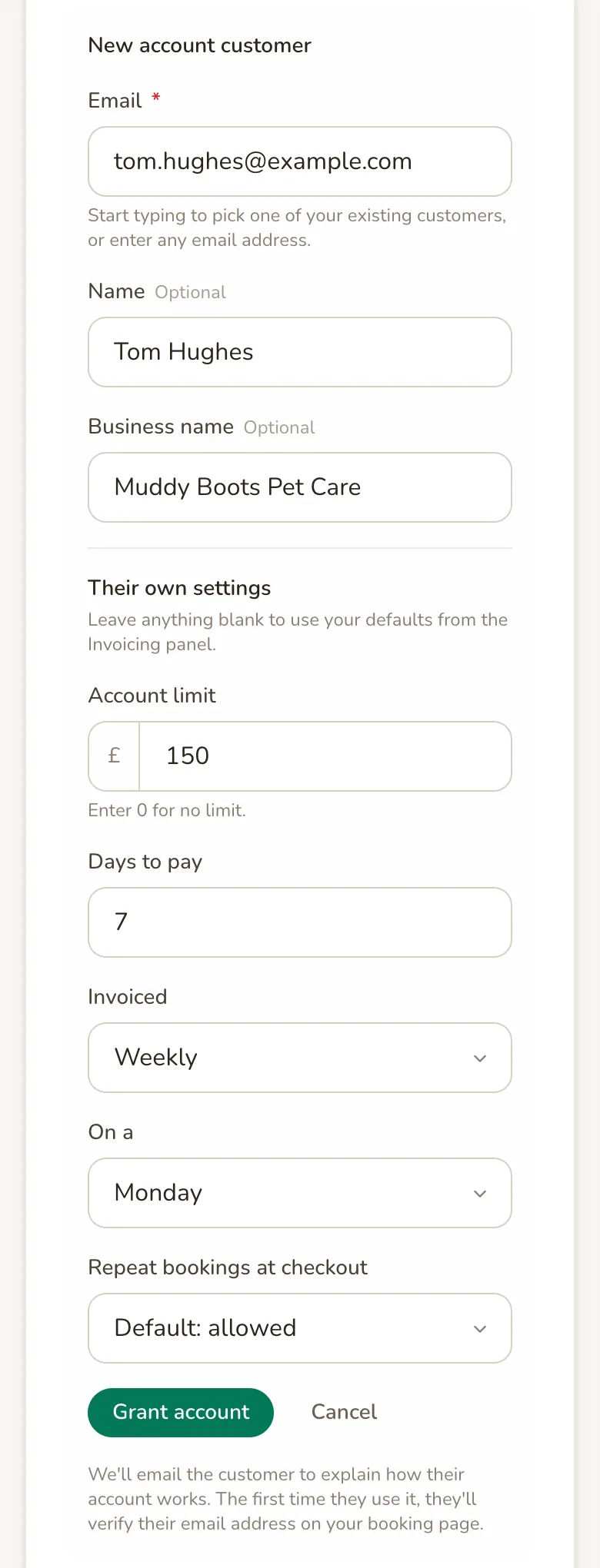
Email is the address the customer books with, and it is what identifies the account. Start typing to pick one of your existing customers, or enter any email address. It cannot be changed later: to move an account to a different address, remove it and add a new one.
Name and Business name are optional. The business name, if you add one, is shown on their invoices and in your lists.
Their own settings are all optional. Leave them blank and the customer follows your defaults from the Invoicing panel. Fill one in to give this customer a different Account limit, a different number of Days to pay, their own invoicing schedule under Invoiced, or to allow or block Repeat bookings at checkout for them alone. For the account limit, enter 0 to give this customer no limit at all.
Tap Grant account. Paddli emails the customer to say they have an account with you and to explain how it works. The account is ready to use straight away.
Choose how accounts are invoiced
Section titled “Choose how accounts are invoiced”The Invoicing panel sets the defaults for every account customer.
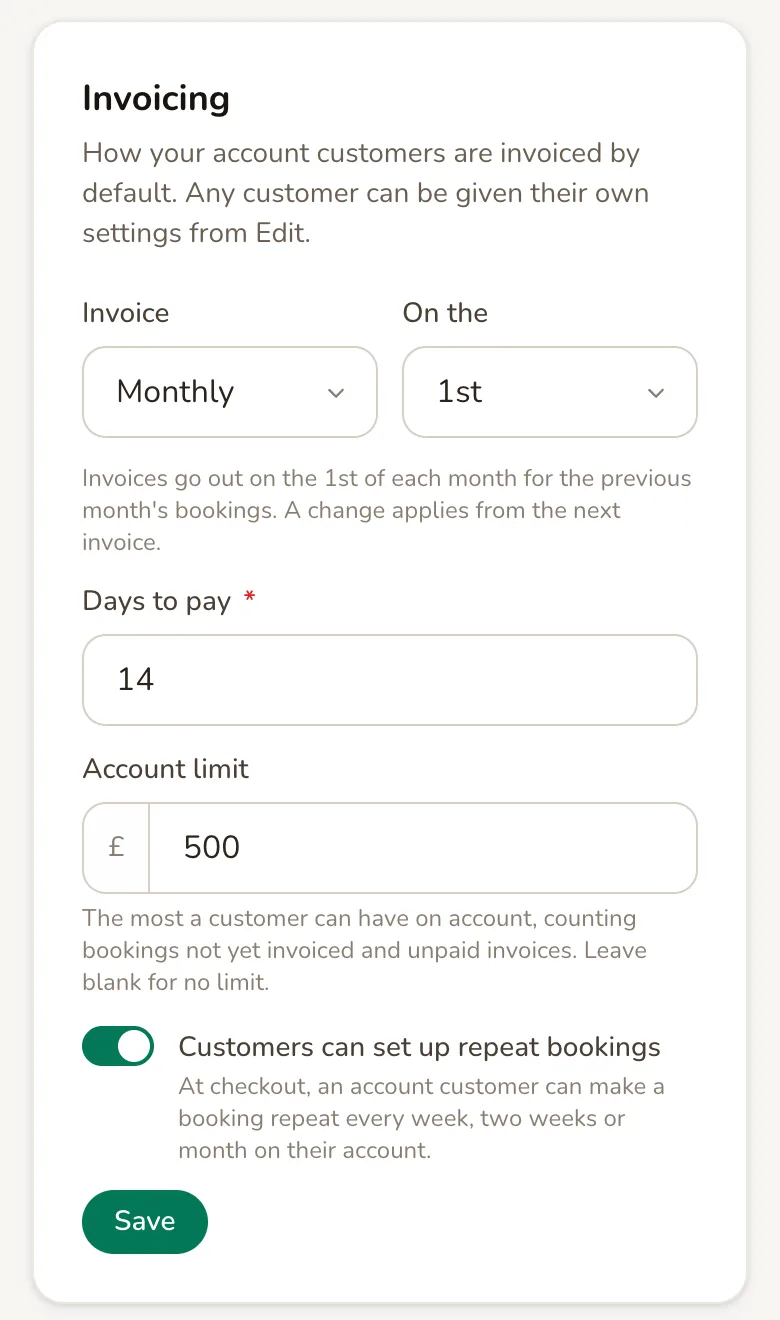
Invoice is how often invoices go out: Weekly, Fortnightly or Monthly. The box beside it sets the day: a day of the week for weekly and fortnightly, or a date from the 1st to the 28th for monthly. The line underneath spells out what you have chosen, for example “Invoices go out on the 1st of each month for the previous month’s bookings.” A change applies from the next invoice.
Days to pay is how long a customer has to pay each invoice, from 1 to 90 days. It starts at 14.
Account limit is the most a customer can have on account at once, counting bookings not yet invoiced and unpaid invoices. When a booking would take them over the limit, they are asked to pay by card for that booking or settle their account first. It starts at 500 in your own currency. Leave it blank for no limit.
Customers can set up repeat bookings decides whether account customers can make a booking repeat when they check out. It is on to begin with.
Tap Save to keep your changes.
What customers see
Section titled “What customers see”An account customer books on your booking page like anyone else. When they enter the email address their account is under, a purple Add to your account box appears above the card form.
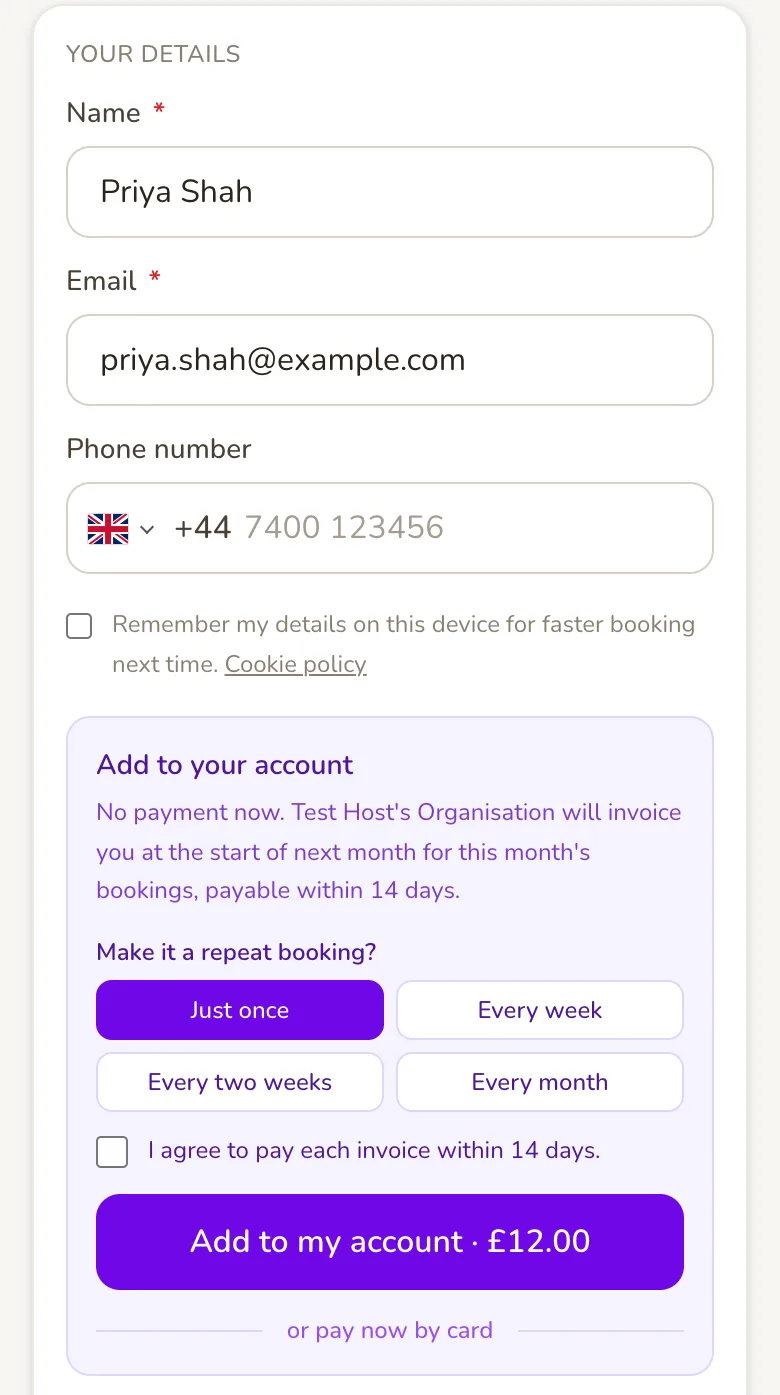
The first time they use their account, the box asks them to verify their email address. Paddli emails them a 6-digit code and they type it in. This is how Paddli makes sure only that customer can book on their account, and they may be asked again on a new phone or computer.
The box tells them when they will be invoiced and how long they have to pay. They tick I agree to pay each invoice within 14 days (the number matches their days to pay) and tap Add to my account. No payment is taken. The booking is confirmed straight away, and their confirmation says it was added to their account and will appear on their next invoice.
They can still pay by card instead: the card form stays underneath, under or pay now by card.
A few things cannot go on an account:
- Gift vouchers. The customer is asked to remove the voucher or pay by card.
- Weekly subscriptions paid by card. They are asked to untick the weekly option. Repeat bookings, below, are the account version of the same idea.
- Free bookings. If a discount code brings the total to zero there is nothing to put on account, so the box is not shown.
Repeat bookings
Section titled “Repeat bookings”A repeat booking puts the same session on a customer’s account every week, every two weeks or every month. You can set one up for a customer, and customers can set one up themselves at checkout.
To set one up yourself, find the customer on the Account customers page and tap Add a repeat booking.
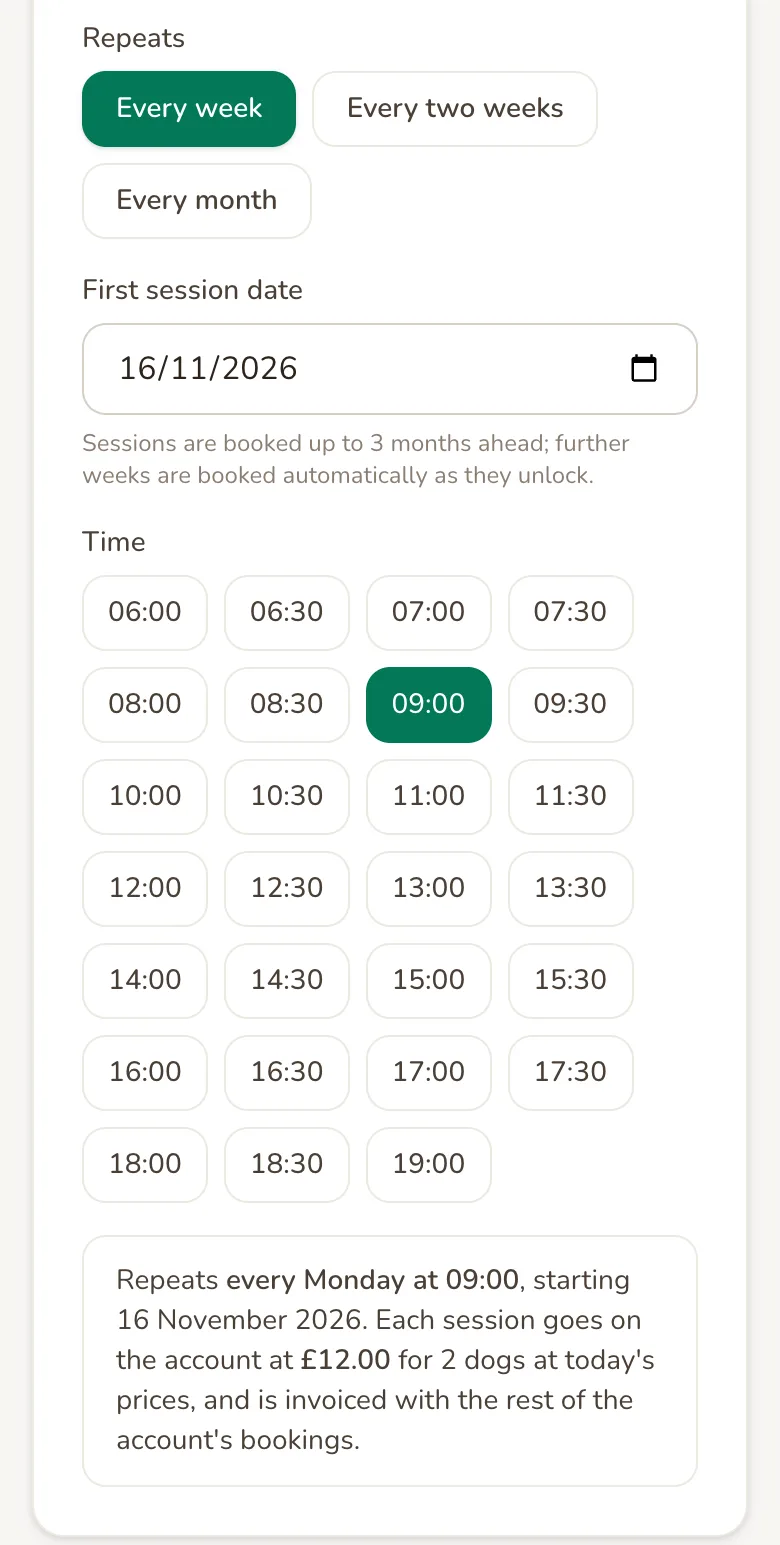
Choose the session type, duration and number of dogs, tick any Extras each session, then choose how often it Repeats: Every week, Every two weeks or Every month. A monthly booking falls on the same weekday of the month as the first session, so a first session on the 2nd Monday repeats on every month’s 2nd Monday. Pick the First session date and a Time, check the customer’s details and tap Set up repeat booking.
Paddli books every session up to as far ahead as your field takes bookings, and adds further ones automatically as time moves on. Every date has to be free when you set it up: if one is already taken, Paddli tells you which and nothing is booked, so you can choose another slot. The customer is emailed the details.
Customers see the same choice at checkout, under Make it a repeat booking?
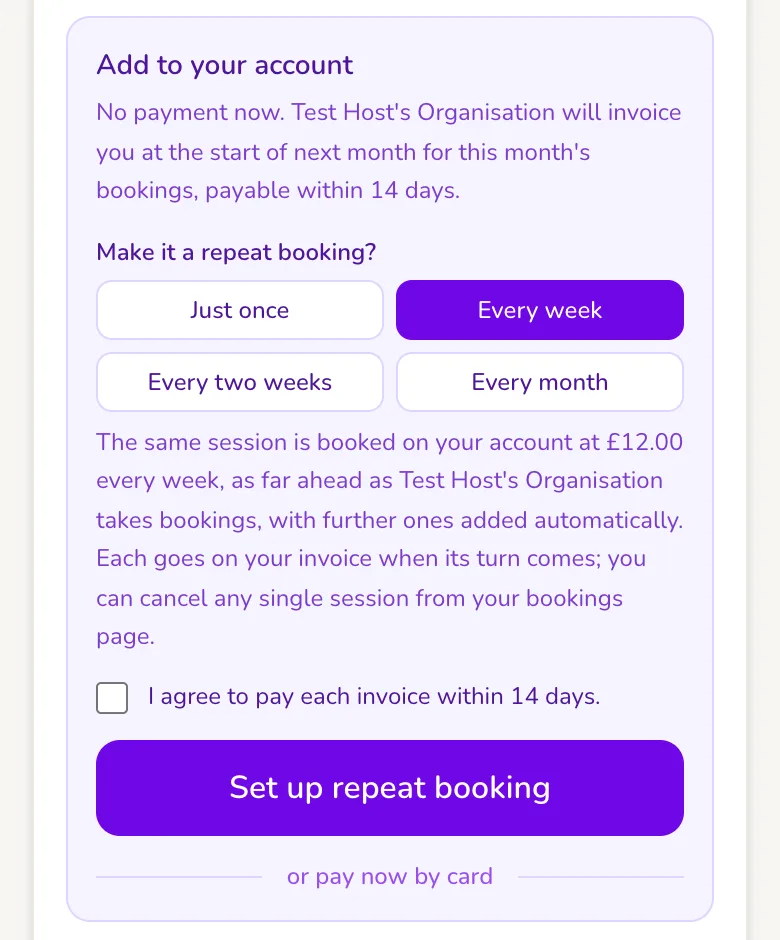
A few things to know about repeat bookings:
- Each session is priced when it is booked, at your price at that time, and goes on the invoice for the period it falls in.
- Extras chosen at set-up are added to every session.
- Your subscription discount comes off every session. So does a discount code, if you ticked it as valid for repeat bookings, and it counts as one use.
- If a later date turns out to be unavailable, or would take the customer over their account limit, that date is skipped and Paddli keeps trying to book it. Nobody is emailed about a skipped date, so check the customer’s bookings if a slot matters.
- Customers can cancel any single session from their bookings page. They cannot stop the whole repeat booking themselves yet: they need to ask you.
- You are not emailed when a customer sets up a repeat booking at checkout. It appears under their name on the Account customers page, and the sessions appear in your bookings.
- Group sessions and events cannot repeat.
To stop one, tap Pause to stop new sessions being booked while keeping the ones already in the diary, or End to finish it for good. When you end a repeat booking you can tick a box to also cancel its upcoming sessions, and the customer is emailed either way.
How invoices work
Section titled “How invoices work”Invoices go out automatically at about 8am on the customer’s invoicing day. Each one covers the sessions that took place in the period just finished: last month, last week or the last two weeks. Bookings made in advance are invoiced after the session date has passed, not when they were booked.
The customer gets an email with the invoice attached as a PDF and a button to pay online. The link opens their invoice with every booking listed, and they can pay by card, Apple Pay or Google Pay without logging in.
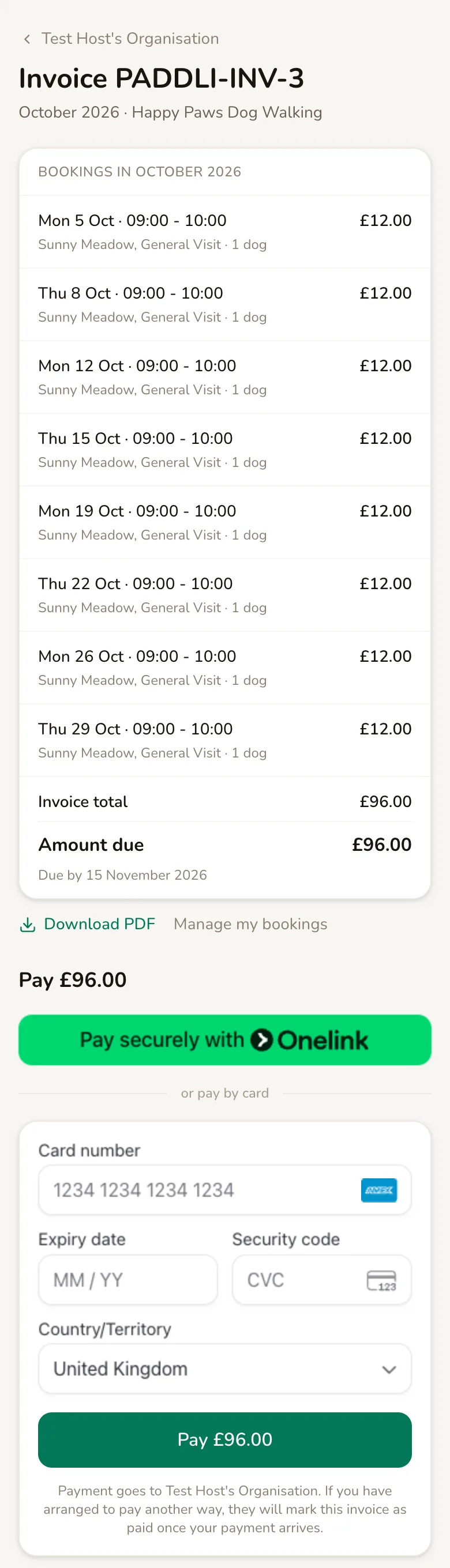
When they pay, you both get an email, and the money reaches you through Stripe like any other card payment. Customers can also find their invoices, pay them and download the PDFs from their own bookings page.
You are not emailed when an invoice is issued, only when it is paid.
Keep track of invoices
Section titled “Keep track of invoices”Tap Invoices at the top of the Account customers page, or the Account invoices shortcut on the Bookings page.
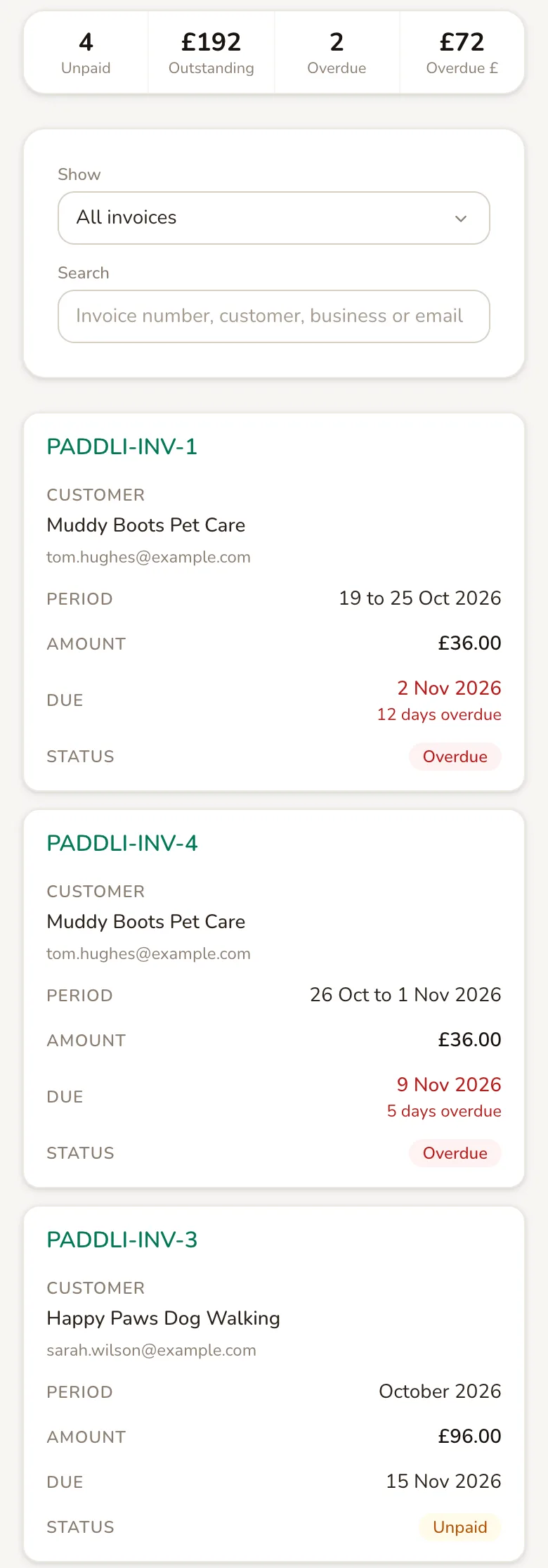
The figures at the top show how many invoices are unpaid, how much is outstanding and how much of that is overdue. Use Show to switch between unpaid, overdue, paid and void invoices, and Search to find one by number, customer, business or email.
- Unpaid has been sent and is not yet due.
- Overdue is past its due date and still unpaid.
- Paid was paid online, marked as paid outside Paddli, or settled in full by a credit note.
- Void was cancelled by you, and nothing is owed on it.
Tap an invoice number to open it. You see every booking on it, any credit notes and refunds, and the things you can do: Download PDF, Resend to the customer, Mark as paid outside Paddli and Void invoice.
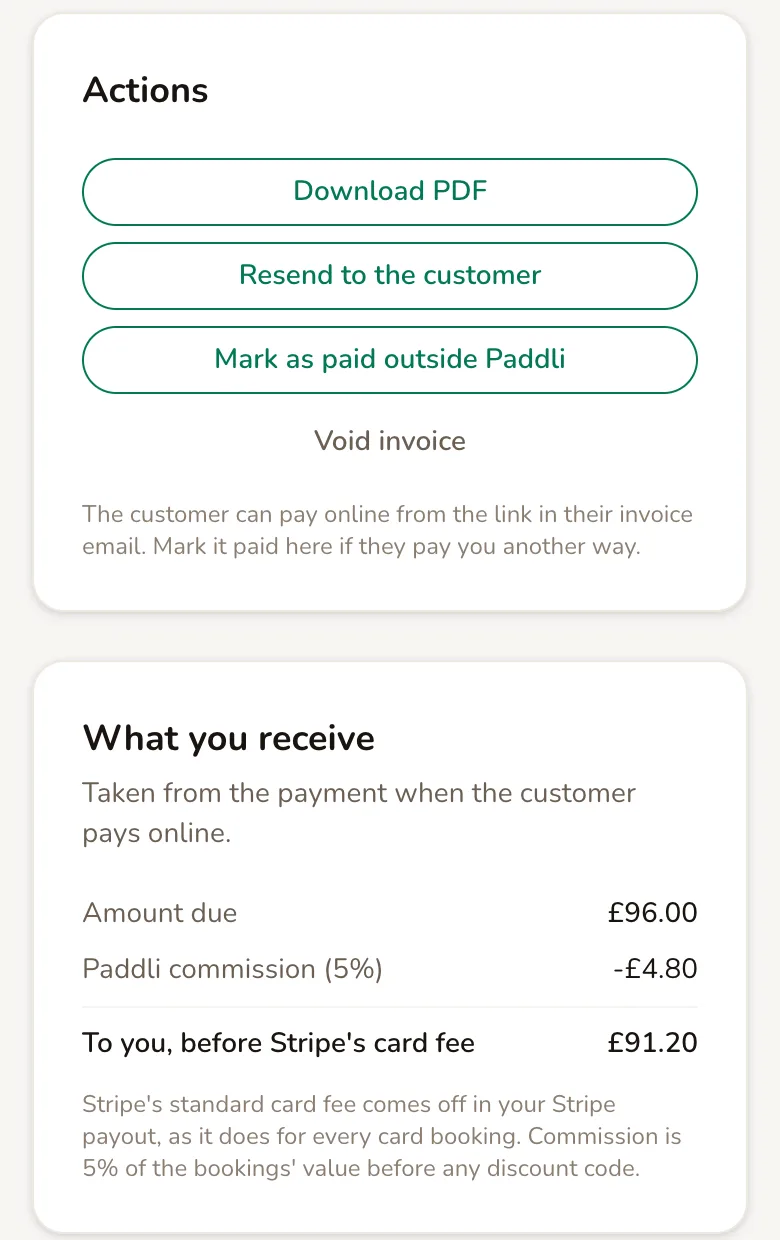
What you receive shows what the invoice will bring in once Paddli’s fee is taken from the payment. Stripe’s standard card fee then comes off in your Stripe payout, as it does for every card booking.
Bookings on account show an On Account badge in your bookings list. Account bookings and invoice payments are not yet counted in the revenue figure on your dashboard.
When a customer pays you directly
Section titled “When a customer pays you directly”Some customers will pay by bank transfer or cash anyway. When the money arrives, open the invoice and tap Mark as paid outside Paddli.
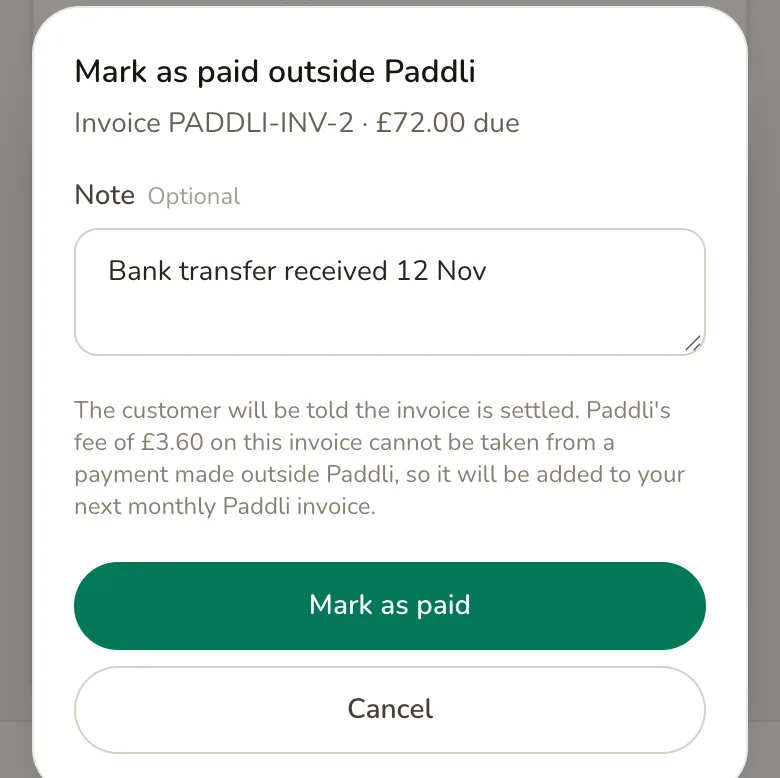
Add a Note for your own records if you like, then tap Mark as paid. The invoice is marked as paid in full and the customer is told it is settled. There is no way to record part of an invoice as paid: mark it once the whole amount has arrived.
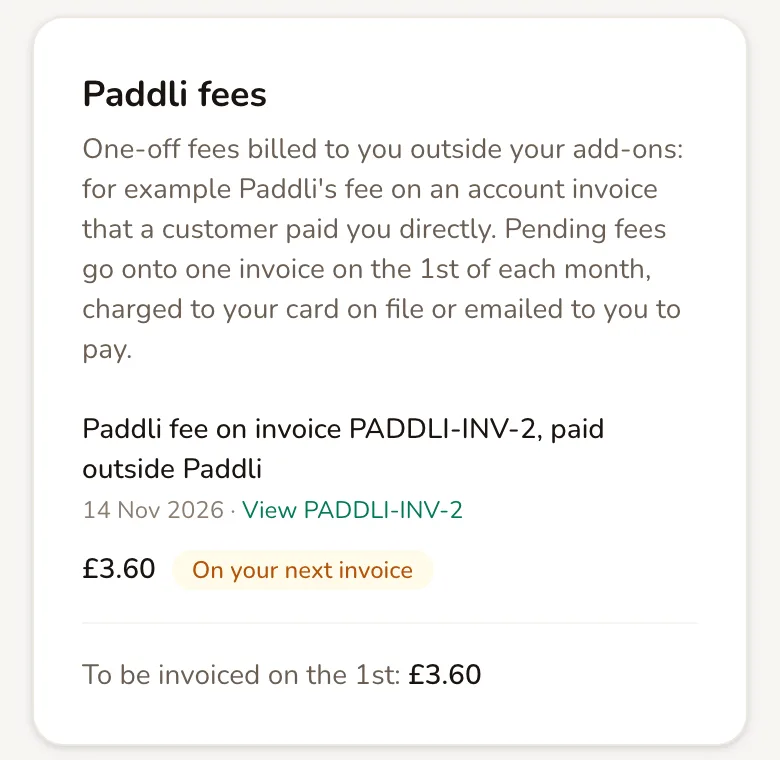
Because the payment did not go through Paddli, the fee could not be taken from it. It is added to your next monthly Paddli fees invoice instead, which goes out on the 1st of the month and is charged to your card on file, or emailed to you to pay if you have no card saved. You can see these fees under Organisation, then Billing, in the Paddli fees card.
Late payers
Section titled “Late payers”Paddli chases unpaid invoices for you. The customer is emailed a reminder three days before the invoice is due, on the day it is due, and every week after that until it is paid. These timings are fixed.
The Overdue invoices panel on the Account customers page decides what happens to the account itself.
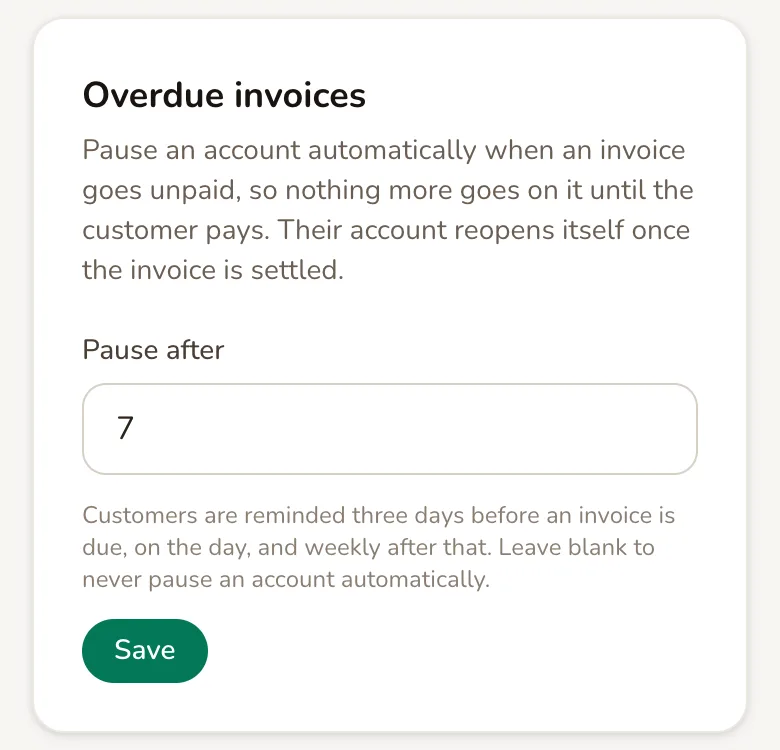
Pause after is how many days an invoice can be overdue before the customer’s account is paused. It starts at 7. Enter 0 to pause an account on the due date itself, or leave it blank to never pause accounts automatically.
A paused account cannot take new bookings on account, and its repeat bookings stop booking new sessions. The customer is emailed to say why, and at checkout they are shown the overdue invoice with a link to pay it. They can still book and pay by card in the meantime. Sessions already booked go ahead and are still invoiced.
The account reopens by itself once none of its invoices are overdue any more: when the late invoice is paid online, marked as paid, voided or credited in full.
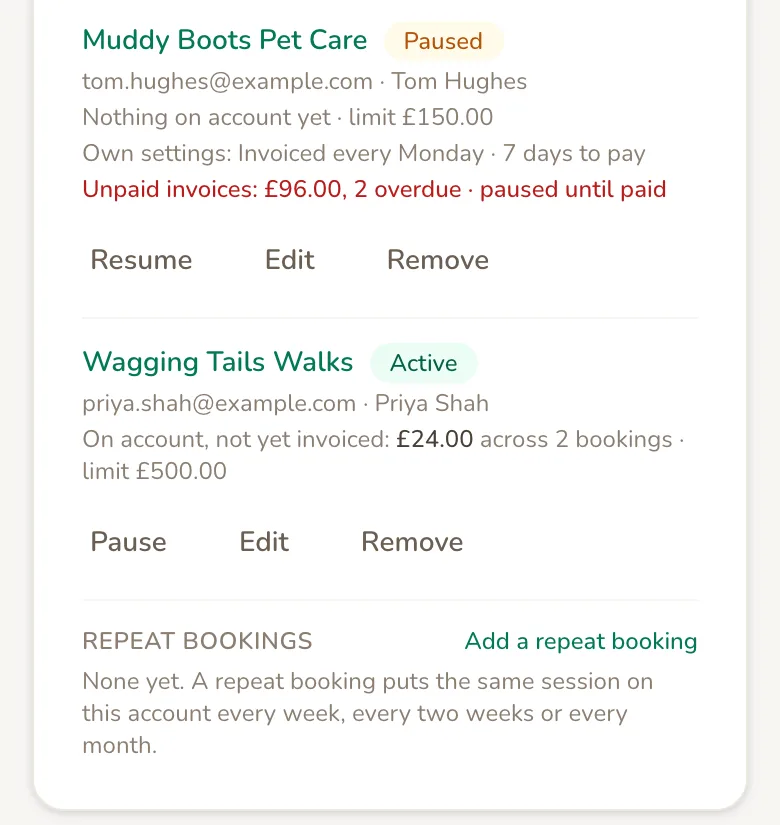
You are not emailed when an account is paused, so look for paused until paid in red on the Account customers page, or the red Account invoices shortcut on your Bookings page.
Cancellations, voids and refunds
Section titled “Cancellations, voids and refunds”When a booking on account is cancelled, what happens depends on where its invoice has got to:
- Not invoiced yet. The booking drops off the account and never appears on an invoice.
- On an unpaid invoice. Paddli issues a credit note for that booking, emails it to the customer, and reduces what they owe. Paddli’s commission on the invoice goes down to match.
- On a paid invoice. Nothing happens automatically. If the invoice was paid online, open it and tap Refund… to send back some or all of the payment. If they paid you directly, settle it with them yourself.
Your usual cancellation rules decide whether a customer can cancel in the first place.
Void invoice cancels an unpaid invoice altogether. The customer is emailed a credit note for the amount still owed, and the bookings on it will not be invoiced again. The bookings themselves are not cancelled.
Refund… is only available on invoices paid through Paddli. The customer gets a credit note for the amount, and the refund does not return Paddli’s fee.
Change, pause or remove an account
Section titled “Change, pause or remove an account”Every customer in the list has three buttons.
Pause stops new bookings going on the account until you tap Resume. The customer is not emailed, their existing bookings stand, and they can still pay by card. An account you pause yourself stays paused until you resume it, even if they pay every invoice.
Edit changes their name, business name or their own settings.
Remove takes the account away.
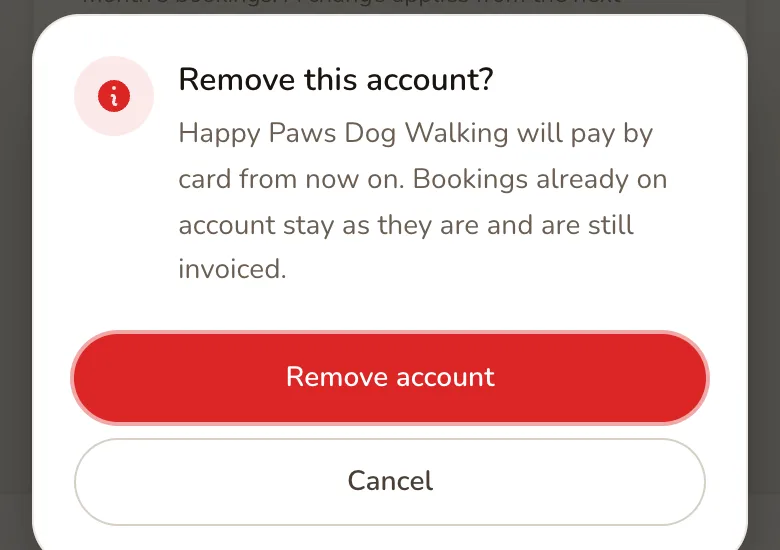
The customer pays by card from then on. Bookings already on their account stay as they are and are still invoiced, and any unpaid invoices are still chased. Their repeat bookings end, and they are emailed about each one, but sessions already booked are kept. If you later add an account for the same email address, the old account is restored with whatever settings you enter.
Related
Section titled “Related”- Discount codes work on a booking that goes on account, and on repeat bookings if ticked as valid for them. As with card bookings, Paddli’s commission is worked out on the price before the code comes off.
- Volume discounts and extras are included when a customer adds several sessions, or a session with extras, to their account in one checkout.
- Gift vouchers cannot be used on a booking that goes on account.
- Weekly subscriptions are paid by card and cannot go on an account. Use a repeat booking instead.
- Group sessions and events can be booked on account one at a time, but cannot be made into a repeat booking.
- Smart locks and gate codes treat a booking on account like a paid one, so the customer gets their code and reminders as normal.
- Bookings you create yourself from the Bookings page cannot be put on an account yet. Set up a repeat booking for the customer, or ask them to book through your booking page.
If something about an account or an invoice does not look right, email Jamie or Helen and we will take a look.
Frequently asked questions
Do I pay more in fees when a customer books on account?
No. Paddli's 5% commission and any text message charges are the same as on a card booking. They are taken from the invoice payment when the customer pays online, so nothing is charged until then. Stripe's standard card fee applies to that payment, as it does to every card booking.
What if an account customer pays me by bank transfer or cash instead of online?
Open the invoice and tap Mark as paid outside Paddli. The customer is told the invoice is settled. Because the payment did not go through Paddli, the fee Paddli would have taken is added to your next monthly Paddli fees invoice instead, which you can see under Organisation, then Billing.
What happens if an account customer does not pay their invoice?
Paddli emails them a reminder three days before the invoice is due, on the day it is due, and every week after that. By default their account is paused once an invoice is seven days overdue, so nothing more can go on it, and it reopens by itself when the invoice is settled. They can still book and pay by card while paused.
Will my other customers notice anything?
No. Only customers you have given an account see the Add to your account option at checkout, and only after they have confirmed their email address with a code. Everyone else books and pays by card exactly as before.
Can I invoice weekly or every two weeks instead of monthly?
Yes. In the Invoicing panel on the Account customers page, choose Weekly, Fortnightly or Monthly and the day invoices go out. You can also give any single customer their own invoicing day, days to pay and account limit from Edit.
Can I send an invoice early, or add my own charges to it?
Not yet. Invoices go out automatically on the customer's invoicing day and contain only the bookings on their account for that period. If a customer needs to settle up sooner, they can pay for individual bookings by card at checkout instead of adding them to their account.
What happens when an account customer cancels a booking?
Nothing is refunded, because nothing was paid. If the booking has not been invoiced yet it drops off their account. If it is on an unpaid invoice, Paddli emails them a credit note and reduces what they owe. If the invoice was already paid online, you can refund them from the invoice with the Refund button.
Can an account customer set up their own repeat bookings?
Yes, unless you switch it off. At checkout they can make a booking repeat every week, every two weeks or every month on their account. Switch off Customers can set up repeat bookings in the Invoicing panel to stop this for everyone, or change it for one customer from Edit. You can always set up a repeat booking for them yourself.