Extras
Offer optional add-ons customers can tick when they book, like a dog wash or agility kit. Each extra has its own price, added to the booking and paid in one go.
Extras are optional add-ons a customer can tick when they book, like a Dog wash for £3.00 or an Agility kit set out before they arrive.
Each extra has its own name, description and price, and it is added to the booking total so the customer pays for everything in one go.
Use them to earn a little more from facilities you already have, and to tell customers about things they might not know you offer.
Where to find them
Section titled “Where to find them”Extras belong to a field, so each field has its own list. Go to Fields, choose the field, then tap Booking setup.
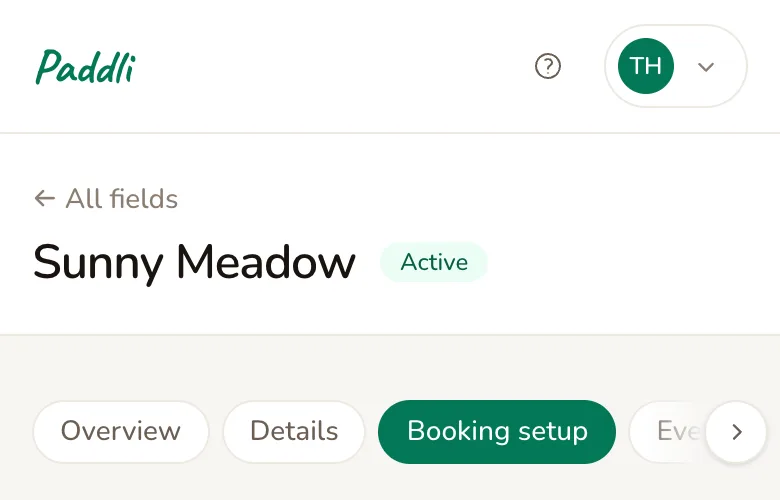
Scroll down past Pricing to the Extras card: “Optional add-ons customers can include with their booking.” If you have several fields and want the same extra on each, add it to each field.
There is no switch to turn extras on: as soon as a field has an extra, customers see it when they book that field. You do not need Stripe connected to set extras up, but customers can only pay for them once it is.
Add an extra
Section titled “Add an extra”Tap Add Extra and fill in the form.
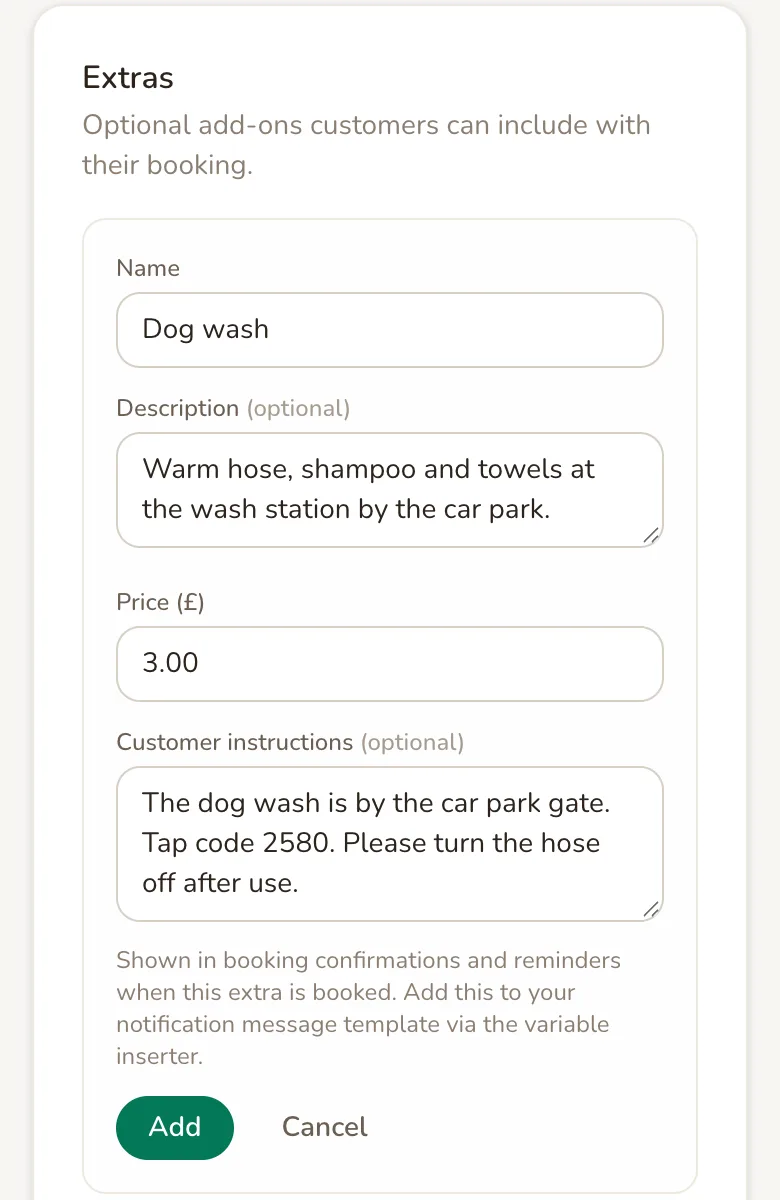
Name is what customers see next to the tick box, for example Dog wash.
It can be up to 255 characters, but a few words read best on a phone.
Description (optional) sits under the name on the booking page. Say what is included and anything a customer should know before paying, in up to 1,000 characters.
Price (£) is what the extra costs for the whole booking. It is a flat price per booking, not per dog or per hour, and it can be 0.00 if you want to offer something free that customers opt into.
Customer instructions (optional) is a private note for customers who book the extra, like where to find the kit or a tap code. It is not shown on the booking page. It only reaches customers when you add it to your messages, as explained in Send instructions with an extra.
Tap Add and the extra goes to the bottom of the list. It is offered on your booking page straight away.
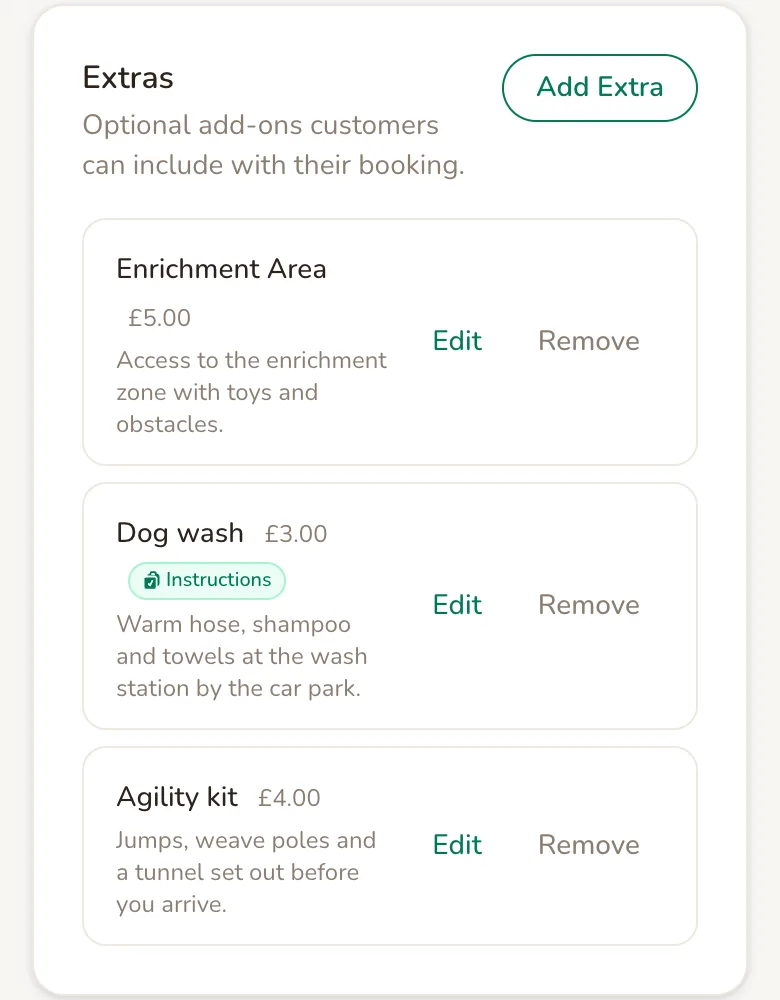
Extras that have customer instructions show an Instructions badge. Customers see extras in the same order as this list. Not yet: you cannot reorder extras, so add them in the order you want them shown.
What customers see
Section titled “What customers see”When a customer picks a time, the Extras section appears under the number of dogs, before Notes. Each extra is a tick box with its name, description and price.
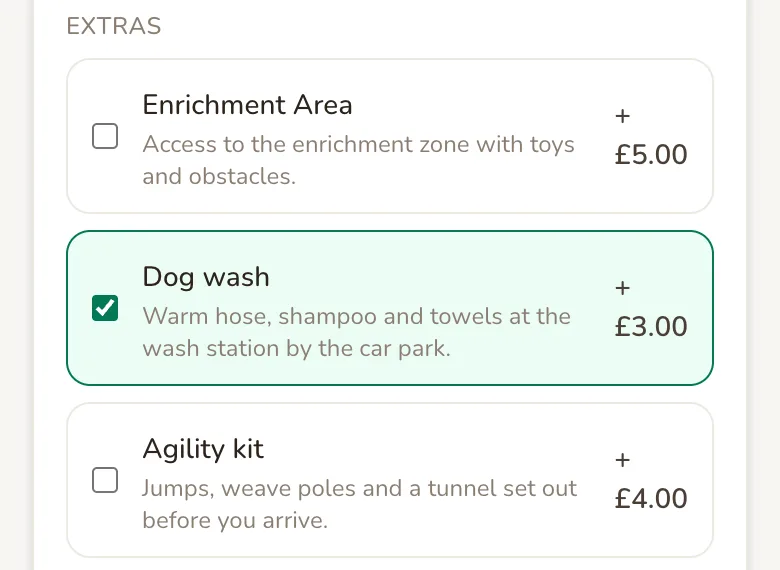
Ticking an extra adds it to the price summary as its own line, and the total goes up straight away. Customers can tick and untick as often as they like before they pay.
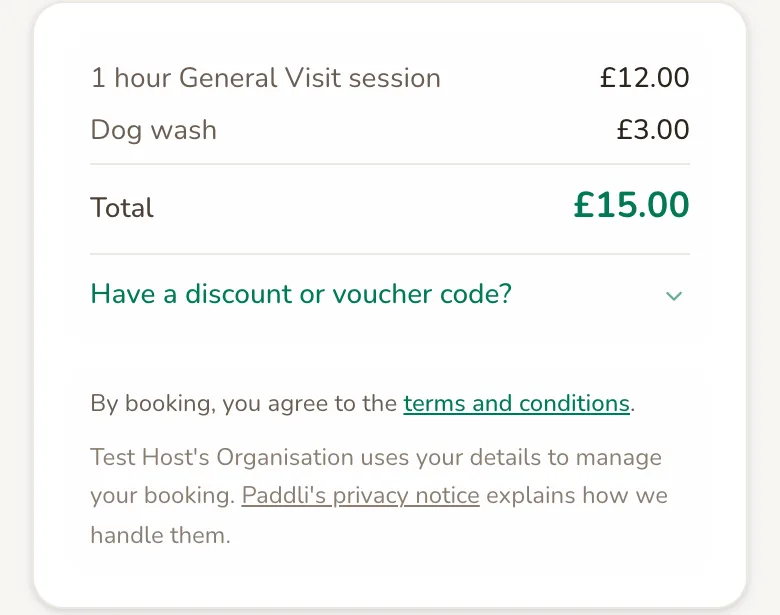
A few things to know:
- Every extra on the field is offered with every session type. Not yet: you cannot limit an extra to some sessions.
- One of each per session. A customer cannot add two of the same extra to one booking.
- Several sessions in one checkout. When a customer taps Add another session, they choose extras again for the next one. The extras are included in each session’s price rather than listed separately.
- Weekly subscriptions. Extras ticked when a customer subscribes are charged every week as part of the weekly price.
- Events. A field’s extras are also offered when customers book one of your events on that field.
The customer’s Booking Confirmed email and their receipt list each extra with its price. The confirmation page after payment shows the booking’s total, not each extra.
See which extras were booked
Section titled “See which extras were booked”Open a booking from Bookings to see what the customer chose. The Pricing breakdown card lists the session and each extra with its price, and Price shows the total for the booking.
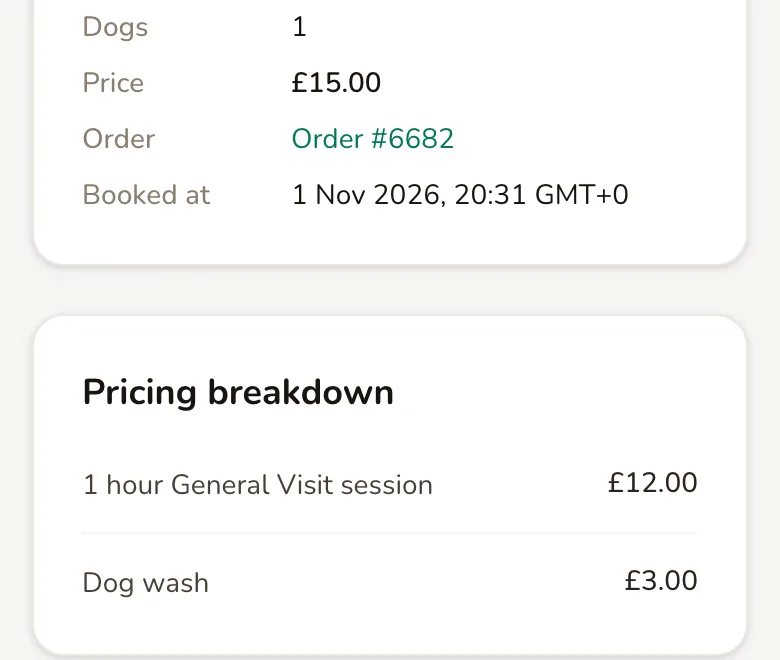
Your New Order email lists extras the same way.
Not yet: there is no report or count of extras sold across all your bookings. The bookings list and the order page show totals, so open each booking to see its extras.
Send instructions with an extra
Section titled “Send instructions with an extra”Customer instructions go out in your customer messages, where you choose to put them. This means you can send them in the confirmation, the reminder, or both.
Go to the field’s Customer messages tab, open the message you want, then tap Variable.
Extras with instructions are listed under Extra instructions, each as a tag like [extra:dog_wash].
Tap one to add it to the message.
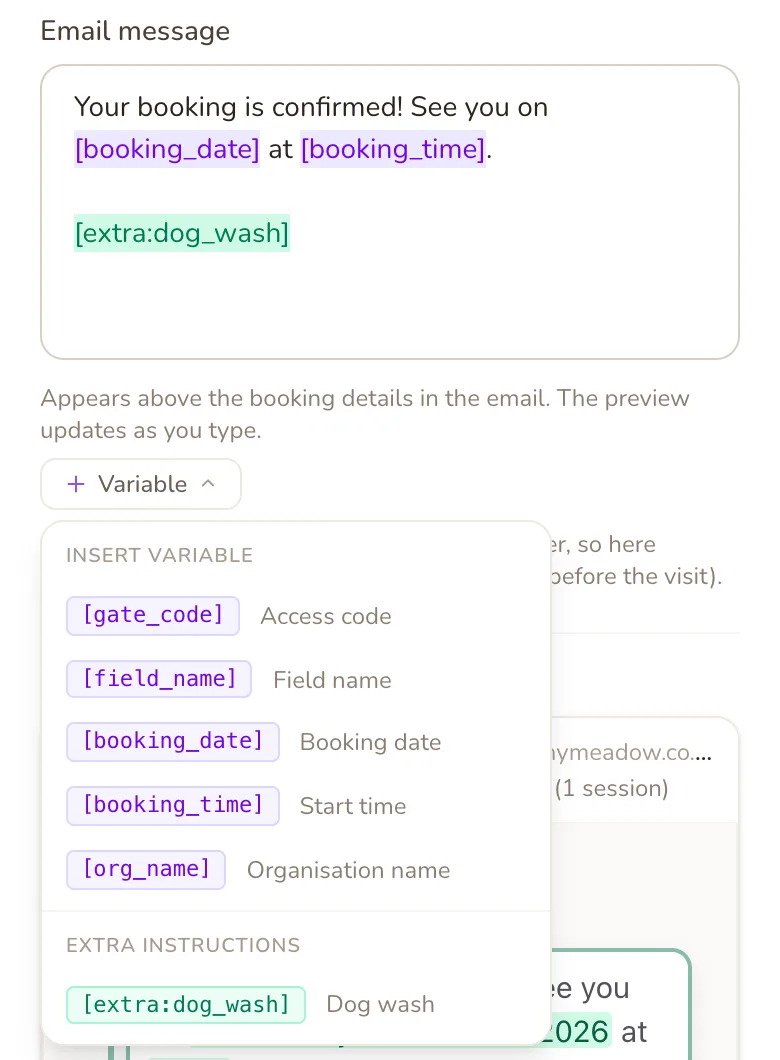
The live preview shows the instructions in place of the tag.
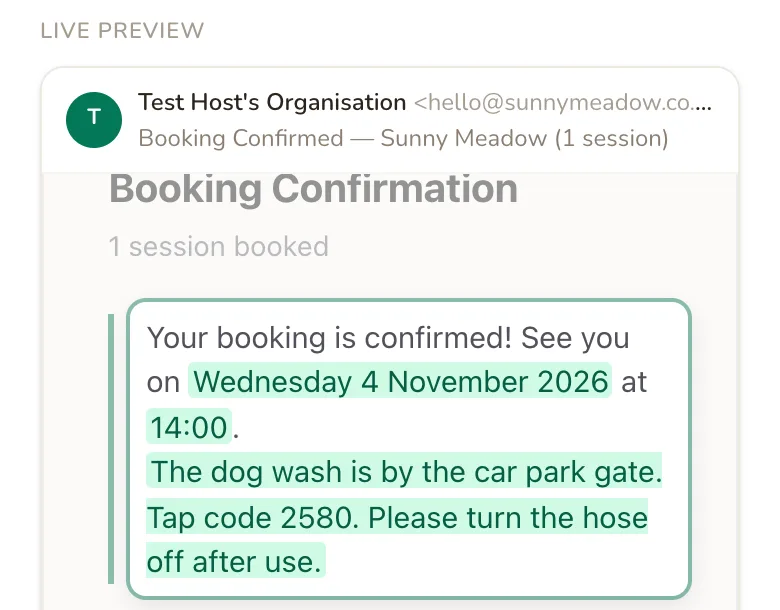
Customers who booked that extra see the instructions. Customers who did not book it see nothing at all where the tag is, so one message works for everyone. If you change the instructions later, messages sent from then on use the new text, including for bookings already made.
Change or remove an extra
Section titled “Change or remove an extra”Tap Edit next to an extra to change any of its details, then tap Update. A new name or price only applies to bookings made after you save. Bookings already made keep the name and price the customer paid, and weekly subscribers keep the price they signed up with.
To stop offering an extra, tap Remove.
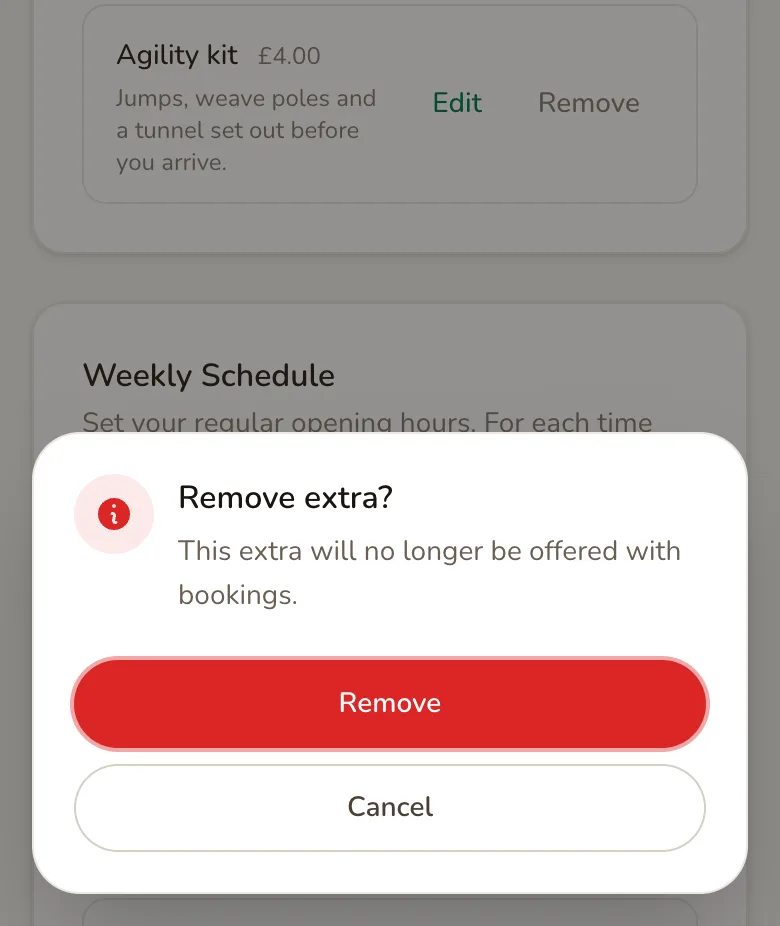
Tap Remove to confirm. The extra disappears from your booking page straight away. Past bookings keep it in their pricing breakdown, and customers who already booked it still get its instructions. Weekly subscribers who chose it keep it, and keep paying for it, until their subscription ends.
Not yet: there is no pause switch. To take an extra away for a season, remove it and add it again later.
How extras are charged and refunded
Section titled “How extras are charged and refunded”The extra’s price is added to the session price and any extra dog charge. Volume discounts, discount codes and gift vouchers then come off that whole total, extras included. Paddli’s 5% is worked out on the total too, and the money for extras reaches you in your normal Stripe payouts.
If a booking is cancelled, the refund covers everything paid for it, extras included. You cannot refund a single extra from a cancellation, but you can issue a partial refund of any amount from the order page. If a booking is moved to a new time, its extras move with it.
Not yet: neither you nor your customer can add or remove an extra once a booking is made.
Ideas for using extras
Section titled “Ideas for using extras”- Dog wash or drying towels. Popular in wet months, and the instructions can include a tap code.
- Agility or enrichment kit. Charge for setting out equipment before the customer arrives.
- Treats or a toy to take home. A small add-on customers pick up at the gate.
- A free opt-in. A £0.00 extra, like “Leave the agility kit out”, tells you what a customer wants without charging them.
Related
Section titled “Related”- Session prices and extra dogs. Extras sit on top of the session price and any extra dog charge, which are set in the field’s Pricing card on the same page.
- Discount codes come off the whole total, extras included, after any volume discount.
- Manual bookings do not include extras. Note anything extra in the booking’s notes.
- Cancellations and changes. A cancelled booking is refunded in full, extras included, and a moved booking keeps its extras.
Frequently asked questions
Do I pay Paddli's fee on extras?
Yes. Extras are part of the booking total, so Paddli's 5% is worked out on the session and the extras together, the same as on the rest of the booking. Stripe's processing fee is also charged on the whole payment. The money for extras goes to you with the rest of the booking in your normal payouts.
Is an extra charged per dog or per booking?
Per booking. An extra costs the same whether the customer brings one dog or six, and a customer can add each extra once per session. To charge more for bigger groups, use the extra dog charge in your pricing instead.
If a customer cancels, are their extras refunded too?
Yes. A cancelled booking is refunded with everything that was paid for it, extras included. You cannot refund one extra on its own from the cancellation, but you can issue a partial refund of any amount from the order page, for example if the dog wash was out of action.
Can a customer add an extra after they have booked?
Not yet. Extras can only be ticked at checkout, and neither you nor the customer can add or remove one on an existing booking. If a customer asks for one later, take payment outside Paddli, or ask them to cancel and book again with the extra if your cancellation settings allow it.
Do discount codes and vouchers come off extras?
Yes. A discount code, a gift voucher or a volume discount applies to the whole booking total, session and extras together. There is no way to make a code cover only the session.
What happens to past bookings if I change or remove an extra?
Nothing changes for them. Each booking keeps the name and price the customer paid. Removing an extra only stops it being offered on new bookings, and weekly subscribers who already have it keep it, and keep paying for it, until their subscription ends.
Can I hide an extra for a while without deleting it?
Not yet. There is no pause switch for an extra, only Remove. To stop offering it for a season, remove it and add it again later with the same name and price.
Can I offer an extra only with certain session types?
Not yet. Every extra on a field is offered with every session type on that field. If an extra only makes sense with some sessions, say so in its description so customers know before they tick it.