Customer messages
Paddli tells your customers when a booking is confirmed, reminds them before it starts, and lets them know if it is cancelled or finished. You choose how each message is sent, when the reminder goes, and what your emails say.
Every booking at your field sends your customer up to four messages: a confirmation when they book, a reminder before their visit, a cancellation if it is called off, and a thank-you once it is over.
You choose how each one is sent (email, text or WhatsApp), when the reminder goes, and what your emails say, for example Please park in the lay-by on Farm Lane and close the gate behind you.
Getting these right saves you answering the same questions every week, and the reminder is how customers get their gate code.
Where to find it
Section titled “Where to find it”Messages are set for each field separately. Go to Fields in the top bar, open the field, then tap Customer messages in its menu. On a phone the field’s menu is a row of pills under the field name, so scroll it sideways if you cannot see Customer messages straight away.
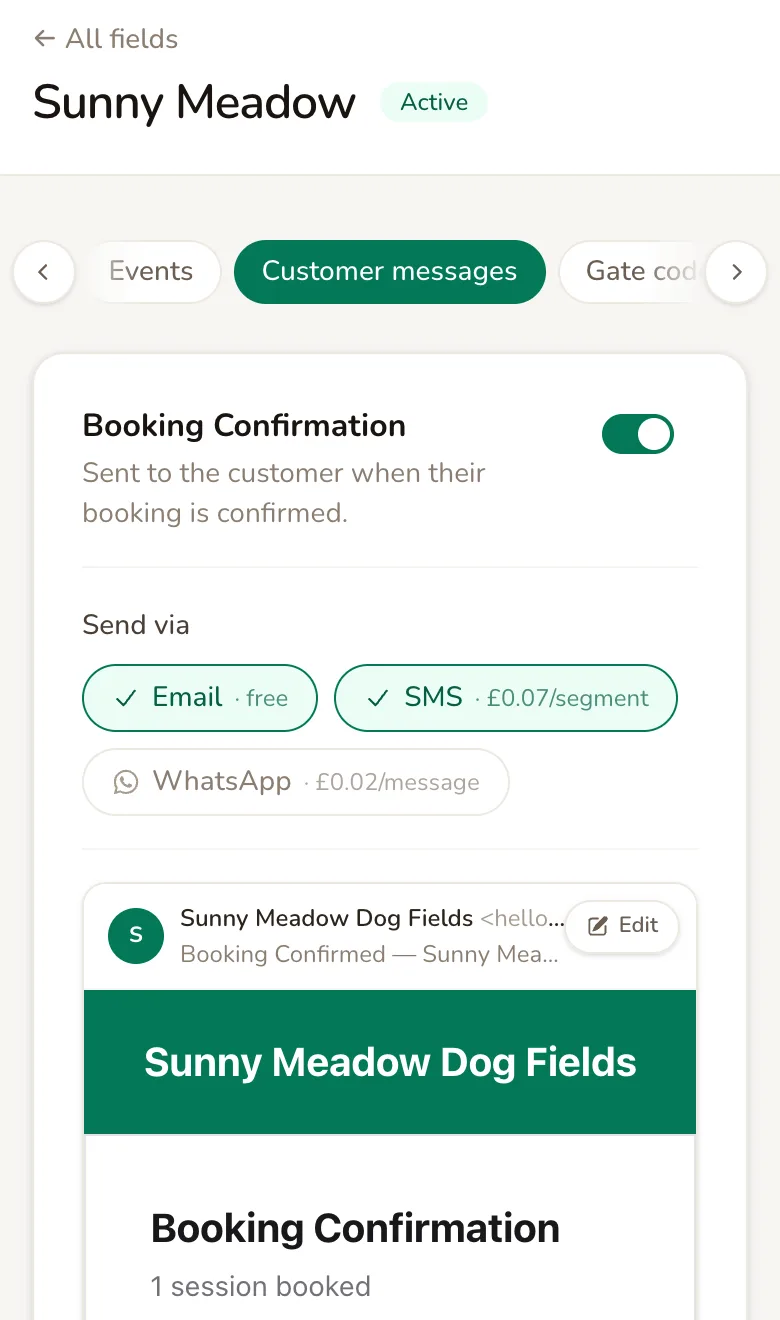
The page has a card for each message:
- Booking Confirmation: sent when the booking is confirmed.
- Booking Cancellation: sent when the booking is cancelled, whoever cancels it.
- Booking Completion: sent after the booking has finished, to thank the customer for visiting.
- Booking Reminder: sent before the booking starts.
Each card shows a preview of every way the message is sent, filled in with an example booking.
Nothing changes until you tap Save Settings at the bottom of the page. Cancel leaves the page without saving.
Choose how each message is sent
Section titled “Choose how each message is sent”Under Send via, tap a channel to tick or untick it:
- Email is free.
- SMS is a text message, charged per segment of up to 160 characters.
- WhatsApp is charged per message, whatever its length.
The price for your country is shown on each option, so you can see it before you switch it on. Customers give their phone number when they book online, and texts and WhatsApp messages go to that number.
New fields start with every message sent by email, and the reminder sent by SMS as well. If you do not want to pay for reminder texts, untick SMS on the Booking Reminder card and save.
To stop sending a message altogether, turn off the switch at the top right of its card. The card then says This message is not sent to customers. If you untick every channel instead, the card warns No methods selected - this message won’t be sent.
Completion messages cannot be sent by WhatsApp, because WhatsApp treats a thank-you after a visit as marketing. Their card shows WhatsApp · not available.
Set the reminder
Section titled “Set the reminder”The reminder works differently from the other three messages. It shows Always on, and it is always emailed, because it is the only message that includes the gate code.
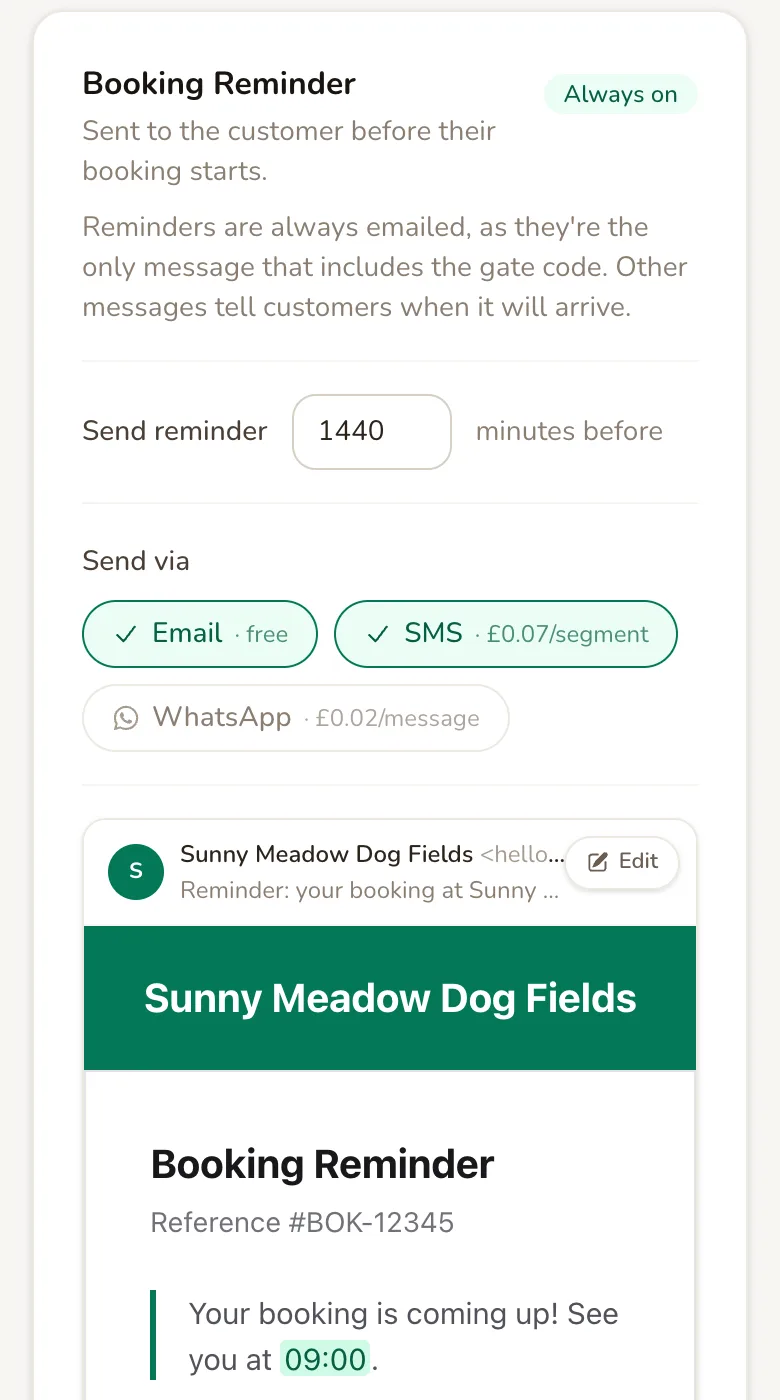
Send reminder is how many minutes before the booking starts the reminder goes.
It starts at 60 (one hour), and you can choose anything from 1 to 1440 minutes, which is 24 hours.
For a reminder the day before, enter 1440.
Paddli checks for due reminders every 5 minutes, so a reminder can arrive up to 5 minutes after the time you set. If a customer books after the reminder time has passed, for example 30 minutes before a session with a one-hour reminder, the reminder goes within the next few minutes. A booking that starts within about 5 minutes of being made may not get a reminder.
Changing the time applies to every upcoming booking that has not had its reminder yet. If a booking is rescheduled, the customer gets a fresh reminder for the new time.
Write your own email text
Section titled “Write your own email text”Every email has a short message from you at the top, above the booking details. New fields start with a sentence such as “Your booking is coming up! See you at [booking_time].” which you can change to anything you like.
Tap the email preview on a card to open the editor.
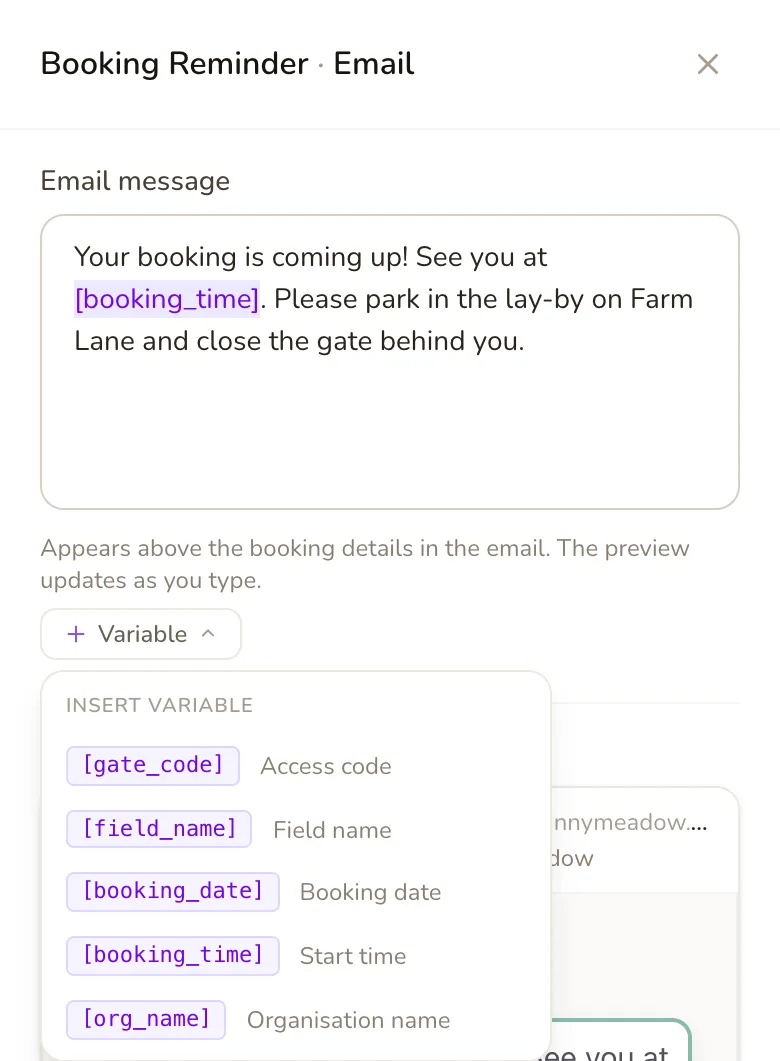
Email message is your text. It can be up to 5,000 characters, and the Live preview below it updates as you type. If you leave it empty, the email goes without a message from you, and the booking details follow straight after the heading.
Tap Variable to add details that change with each booking. Paddli fills them in when the email is sent:
- [field_name]: the field’s name.
- [booking_date]: the date of the booking, such as Monday 9 November 2026.
- [booking_time]: the start time.
- [org_name]: your organisation’s name.
- [gate_code]: only offered when the field has a gate code. The reminder shows the code itself. The confirmation says when the code will arrive instead, for example in the reminder one hour before the visit. In cancellation and completion messages, any line containing it is left out.
If you sell extras with customer instructions, they are listed under Extra instructions. Each one adds that extra’s instructions, but only for customers who booked it.
Tap Done to close the editor, then Save Settings to keep your changes. Done on its own does not save.
The booking details, directions, gate code section and links to manage the booking are added by Paddli and cannot be edited. Replies to any email go to your organisation’s email address.
Change the wording of texts
Section titled “Change the wording of texts”Paddli writes the text messages for you, and they are kept short. For example, the reminder text reads “Reminder: your booking at [field_name] is at [booking_time] on [booking_date].” with the gate code on a second line when the field has one. Texts come from Paddli.
You cannot change text wording directly, because every host’s texts go out from the same sender and a single bad message can get it blocked. Instead, you suggest new wording and Jamie or Helen review it.
Tap the SMS preview on a card to open Suggested SMS message.
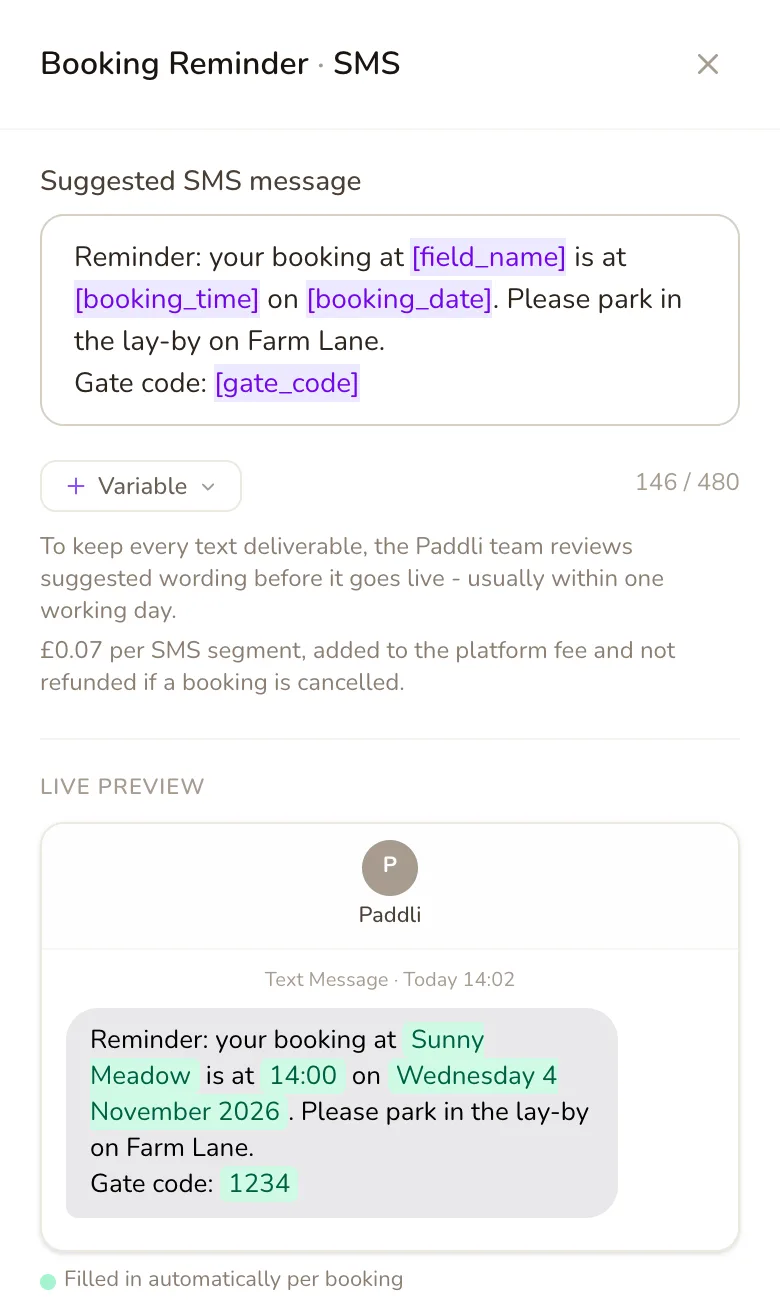
You can use the same variables as in emails. The counter shows how long the text can be once they are filled in, up to 480 characters. A text over 160 characters is sent as several texts and charged for each one.
Texts can only use standard characters. Emoji are removed and curly quotes are swapped for straight ones when you submit, and the editor lists these changes as you type.
Tap Request review. You see Change requested - the Paddli team will review it shortly. and the message’s SMS preview shows Pending review.
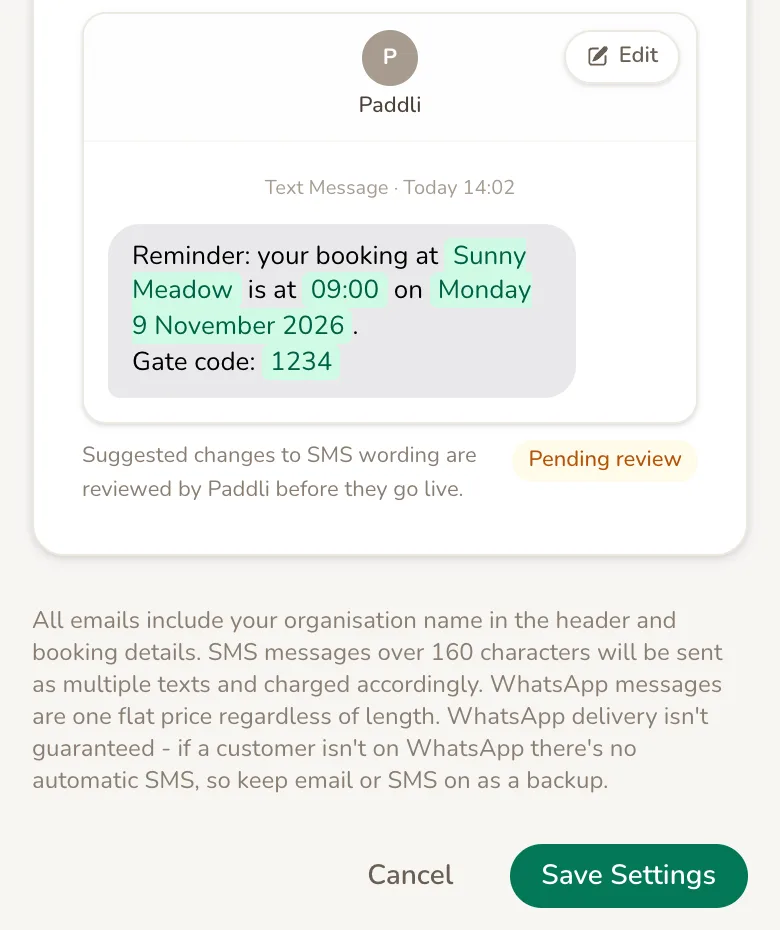
Your current wording keeps going out until the suggestion is approved. Approval is usually within one working day. Once it is approved the badge goes and the preview shows your new wording. If it is turned down, the badge goes and the old wording stays. You are not sent an email either way, so check the preview.
Each message can have one suggestion waiting at a time. Submitting another replaces the first. Withdrawing a suggestion is not possible yet; ask Jamie or Helen if you need one withdrawn.
Send messages by WhatsApp
Section titled “Send messages by WhatsApp”Confirmations, reminders and cancellations can go by WhatsApp from Paddli’s WhatsApp business number. Tick WhatsApp on the card to switch it on.
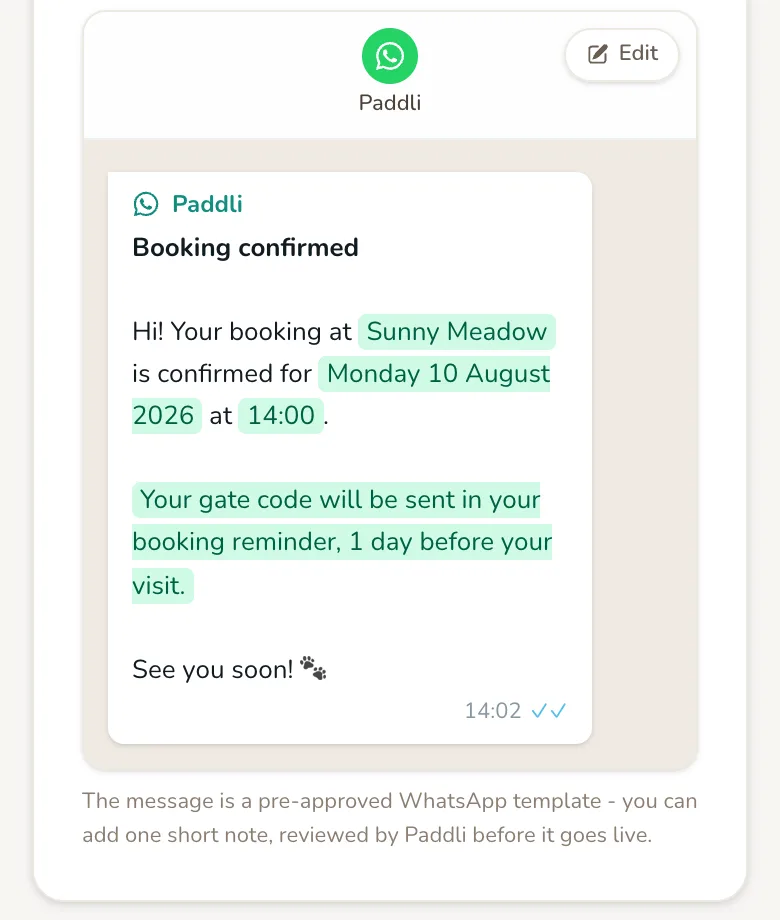
WhatsApp messages use fixed wording approved by WhatsApp, and the booking details are always included. You can add one short note of your own, such as where to park or what to bring. Tap the WhatsApp preview to open the editor.
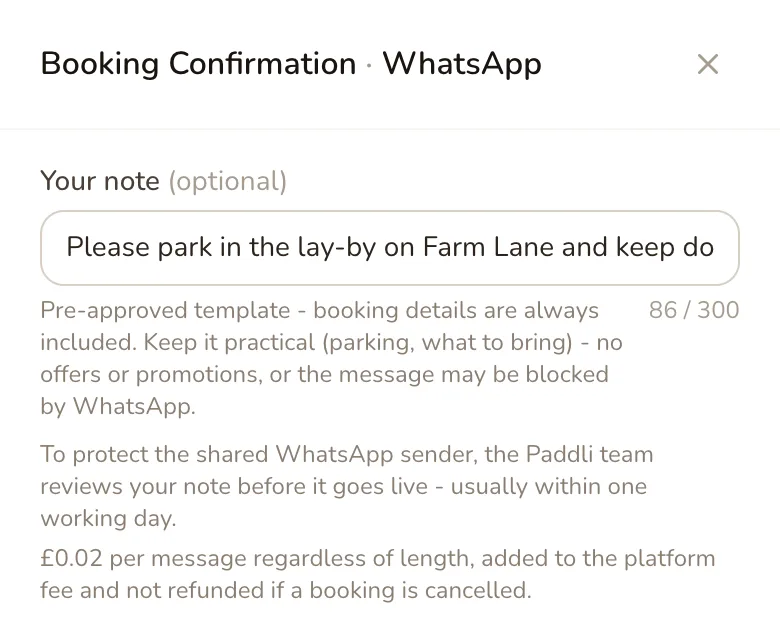
Your note can be up to 300 characters on a single line. Keep it practical: offers and promotions can get the message blocked by WhatsApp. Like text wording, notes are reviewed by Jamie or Helen before they go live, so tap Request review to submit it. Removing a note once it is live cannot be done from this screen yet, so ask Jamie or Helen.
A few things to know before relying on WhatsApp:
- WhatsApp replaces SMS. If both are ticked for a message, a customer gets the WhatsApp message instead of the text, never both, and you pay for one.
- Not every customer is on WhatsApp. If they are not, they do not get a text instead. Keep Email ticked as a backup.
- Customers can opt out. Replying STOP to Paddli’s WhatsApp messages stops them. From then on that customer gets texts (if SMS is ticked) and emails instead.
What customers get
Section titled “What customers get”Here is a reminder email as a customer sees it, with your organisation’s name at the top, your message, the booking, directions and the gate code.
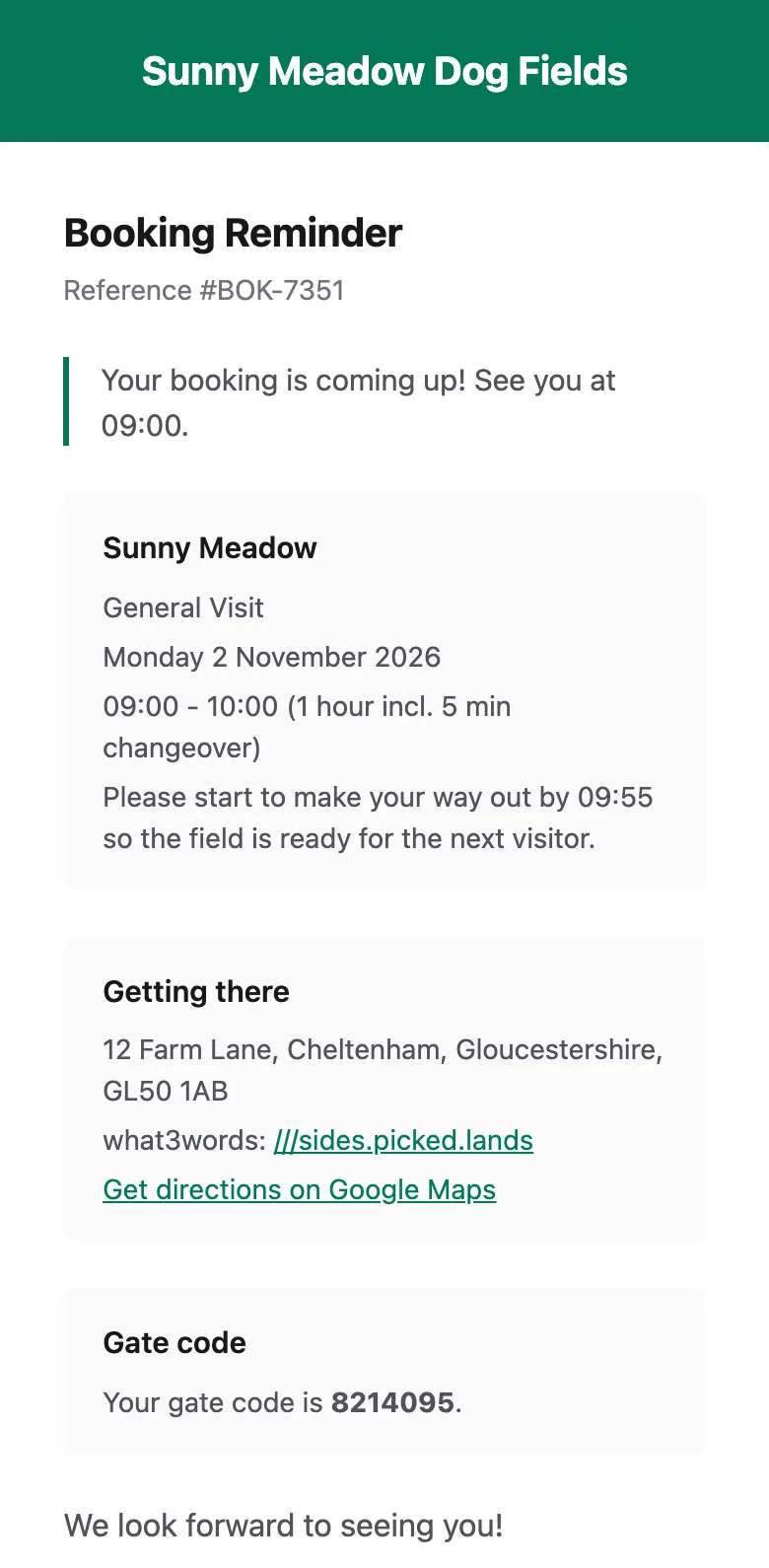
Customers do not choose how they hear from you. There is no tick box for texts or WhatsApp at checkout: whatever you have switched on is sent, as long as they gave a phone number. Booking emails have no unsubscribe link, because they are about a booking the customer made.
Gate codes are only ever sent in the reminder. The confirmation tells the customer when the code will arrive. If they book after the reminder time has passed, the confirmation says the code is on its way in the reminder shortly. For how gate codes are created, see Getting started with smart locks.
A few messages do not follow these settings exactly:
- Rescheduled bookings always get an email with the new date and time, even if the confirmation email is switched off. A text or WhatsApp message also goes if those are on for the confirmation, with fixed wording.
- Weekly subscriptions start with a subscription confirmation instead of the booking confirmation, and your confirmation email text is not used in it. Each weekly session then gets the usual reminder and completion messages.
- Manual bookings you add yourself get no confirmation. They get the reminder, cancellation and completion messages if you entered the customer’s email or phone number, and nothing if you entered neither.
What texts and WhatsApp messages cost
Section titled “What texts and WhatsApp messages cost”Emails are free. Texts and WhatsApp messages are charged at the rate shown on each option in Send via. The rate depends on the country your account is in.
You are charged for:
- one confirmation per order, even if the order has several sessions;
- one reminder per booking;
- one completion per booking.
Cancellation texts and WhatsApp messages are not charged.
The charge is worked out when the customer pays and added to Paddli’s fee on that card payment, so it comes out of the payment before it reaches your Stripe balance. It is not refunded if the booking is later cancelled, even though Paddli’s 5% fee is. Bookings with no card payment, such as manual bookings, have no text charges taken from them.
There is no breakdown of text charges for each booking in your account yet.
Copying settings to another field
Section titled “Copying settings to another field”Not yet. Each field has its own Customer messages page, so if you have more than one field, set each one up separately. Messages that you get yourself, such as new booking alerts, are set in Organisation, then Notifications.
Related
Section titled “Related”- Gate codes and smart locks: the reminder is the only message with the gate code, which is why it cannot be switched off. See Getting started with smart locks.
- Extras: an extra’s customer instructions can go into any email with the Extra instructions variable, and only reach customers who booked that extra.
- Cancellations: the cancellation message goes whether you or the customer cancels, and tells the customer about their refund.
- Manual bookings and weekly subscriptions: see “What customers get” above for how their messages differ.
Frequently asked questions
Do customer emails cost anything?
No, emails are free. Texts and WhatsApp messages have a small charge per message, shown on each option in Customer messages before you switch it on. That charge is added to Paddli's fee on the customer's card payment and is not refunded if the booking is cancelled. Cancellation texts are not charged.
Why are my customers getting a text reminder when I never switched one on?
New fields start with the booking reminder sent by email and by SMS, so customers get a text as well as an email. To stop the texts, go to Fields, open the field, tap Customer messages, tap SMS on the Booking Reminder card so it is no longer ticked, and tap Save Settings. The reminder email always goes.
How long before a booking is the reminder sent?
One hour by default. You can set any time from 1 minute to 1440 minutes (24 hours) under Send reminder on the Booking Reminder card. Paddli checks for due reminders every 5 minutes, so a reminder can arrive up to 5 minutes after the time you set.
Can I switch off booking reminders?
No. The reminder email always goes, because it is the only message that carries the gate code. You can choose whether it is also sent by text or WhatsApp, and how long before the booking it goes.
Can I change the wording of the text messages?
You can suggest new wording. Tap the SMS preview on a message's card, type your suggestion and tap Request review. Jamie or Helen check it, usually within one working day, and it goes live once approved. Email text is different, because you change it yourself and it applies as soon as you tap Save Settings.
Will customers get both a text and a WhatsApp message?
No. When SMS and WhatsApp are both on for a message, WhatsApp replaces the text for that customer, so they get one or the other and you pay for one. If a customer has opted out of WhatsApp, they get the text instead.
Do changes to my messages affect bookings already made?
Yes, for messages that have not gone out yet. Each message is put together when it is sent, so new wording and a new reminder time apply to every upcoming booking whose message has not been sent. Messages that have already gone are not sent again.
Can I see which messages a customer was sent?
Not yet. There is no message history for hosts. On a booking's page, a field with a gate code shows when the reminder carrying the code was sent or is due.